Skip to content

Wilson M

23 posts by Wilson M

Unlocking Your Printer: The Definitive Guide to Flashing Klipper on BTT & STM32 Boards


If you are treating your 3D printer as a simple appliance, stock firmware is sufficient. But if you are an engineering enthusiast looking to unlock high-speed kinematics and granular control, you need Klipper.

Transitioning from stock firmware (Marlin) to Klipper is the single most effective upgrade you can make for print quality and speed. However, the installation process—specifically flashing the compiled firmware to the mainboard—is often where the “magic” breaks down for beginners.

In my latest video, I walk you through the entire Klipper Install via KIAUH process, focusing specifically on the critical steps for STM32 chips and BigTreeTech (BTT) boards.

The Klipper Installation And Update Helper (KIAUH) transforms a complex Linux command-line ordeal into a manageable menu-driven process. It handles the heavy lifting of dependencies, but it cannot decide your hardware configuration for you. That is where this guide comes in.

Most modern 3D printer mainboards, including the BigTreeTech Manta E3 EZ and the boards found in the CR10 Smart Pro, run on STM32 architecture.

When you run make menuconfig in your SSH client (we recommend PuTTY), you are building the operating system kernel for your printer.

  1. Micro-controller Architecture: STMicroelectronics STM32
  2. Processor Model: Ensure you match this exactly to the chip on your board (e.g., STM32F407).
  3. Communication Interface: Typically USB (on PA11/PA12) or USART for specific wiring setups.

[!NOTE] Getting these settings wrong won’t break your board, but Klipper simply won’t connect. Always verify your chip model physically if unsure.

The “Rename Trick”: A BigTreeTech Specificity

Section titled “The “Rename Trick”: A BigTreeTech Specificity”

This is the most common point of failure for new Voron or custom-build users.

Standard Klipper documentation tells you to copy the generated klipper.bin file to your SD card. However, BigTreeTech bootloaders are programmed to look for a specific filename to trigger the flash.

If you are using a BTT board, you must rename the file:

  • Original: klipper.bin
  • Renamed: firmware.bin

If you do not rename it, the board will ignore the update and boot into the old firmware. Once flashed successfully, the board will often rename the file on the SD card to firmware.cur (current) to indicate success.

Reliable data transmission relies on reliable wiring. If you are upgrading your mainboard or building a Voron, you will be crimping JST connectors.

Sourcing the Right Tools: Do not use generic pliers. A proper crimp should “click.” I recommend specific iCrimp tools for JST/Dupont connections to ensure your CAN-bus or USB data lines are noise-free.

iCrimp JST Connector Kit

Essential for re-pinning fans

I break down every step visually in the video below, including how to use CyberDuck to pull the compiled binary off your Pi and onto your desktop.


Did this guide help you “root” your printer? If you found value in this technical deep dive, consider buying me a coffee to support future open-source guides.

How to Install Klipper with KIAUH (Step-by-Step BTT CB1 Guide)

Part 1: The “Part 0” Setup for the CR10 Smart Pro Upgrade

Section titled “Part 1: The “Part 0” Setup for the CR10 Smart Pro Upgrade”

If you are looking to unlock the full potential of your 3D printer, moving to Klipper is the ultimate upgrade. But before we can configure printer settings or tune input shapers, we need a solid foundation.

In this guide (Part 1 of my CR10 Smart Pro Upgrade Series), I’m walking you through the “Part 0” essential setup: flashing the operating system to a BigTreeTech CB1 and installing the full Klipper software stack using KIAUH (Klipper Installation And Update Helper).

While I am performing this on a CR10 Smart Pro, this guide applies to anyone setting up a BigTreeTech CB1 for the first time.

Below are the key components I used for this build. These are affiliate links—if you purchase through them, I earn a small commission at no extra cost to you, which helps support the channel.

BigTreeTech CB1 Compute Module

High-performance compute module for 3D printer control. Drop-in replacement for Raspberry Pi CM4.
$30–$40

BigTreeTech M5P Board

Motherboard for CB1 integration. Supports multiple stepper motors and sensors.
$50–$80

Reliable MicroSD Card (32GB)

High-speed card for OS imaging. Look for Class 10 or UHS-II rated cards for reliability.
$10–$15

The first step is getting the operating system onto your microSD card.

  1. Download the Raspberry Pi Imager: You’ll need this tool to flash the image file. Download it from the official Raspberry Pi website.
  2. Download the CB1 Image: Head to the BigTreeTech GitHub page. I am using the CB1 Debian 12 Minimal Kernel 6.6 image.
  3. Flash the Card:
    • Open Raspberry Pi Imager.
    • Under Device, select “No Filtering” from the dropdown.
    • Under OS, scroll down to “Use Custom” and select the CB1 image you just downloaded.
    • Select your SD card (ensure you don’t have important files on it, as it will be erased!).
    • Hit Write. This usually takes 3 to 5 minutes.

Step 2: Configuring Wi-Fi (The Critical Step)

Section titled “Step 2: Configuring Wi-Fi (The Critical Step)”

Before putting the card into the printer, we need to tell it how to connect to the network. Note: You cannot do this step easily on a Mac; it is best done on Windows.

  1. Re-insert the finished SD card into your computer.
  2. Open the drive and look for a file named system.cfg.
  3. Important: Open this file with Notepad++ (do not use WordPad, as it can mess up the formatting).
  4. Edit the Hostname: I changed my hostname to CR10-Smart-Pro so it is easy to find on the network.
  5. Edit Wi-Fi Settings: Uncomment (remove the #) the WIFI_SSID and WIFI_PASSWD lines. Enter your router name and password.
  6. Save the file and eject the card.

Insert the SD card into your CB1/Printer and power it on. Give it a few minutes to boot up.

  1. Open PuTTY (or your preferred terminal).
  2. Connect to the printer using the hostname you set (e.g., CR10-Smart-Pro) or its IP address.
  3. Default Credentials:
    • Username: root
    • Password: root
  4. The system will prompt you to change the password immediately. I also recommend setting up a standard user account (I set mine up as “mike”) so you aren’t always running as root.

The OS image provided by BigTreeTech is often a bit old (mine was nearly a year old), so we need to update it and install the 3D printing software.

  1. Update System: Run the update commands provided in the terminal to ensure packages are current.
  2. Install Git: You need Git installed to clone the KIAUH repository.
  3. Run KIAUH: Clone the repo and launch the script:
    Terminal window
    git clone https://github.com/dw-0/kiauh.git
    cd kiauh
    ./kiauh.sh

From the KIAUH menu, select Install (Option 1) and install the following components in order:

  • Klipper: Select Python 3.x. When asked about instances, select “1” (since this CB1 manages one printer).
  • Moonraker: Install with default config.
  • Mainsail: This is my preferred web interface. It will default to port 80.
  • KlipperScreen: Essential if you plan on adding a touchscreen later.
  • Crowsnest: Install this if you plan to use a webcam for monitoring.

Once KIAUH finishes, you have a CB1 that is fully loaded with the Klipper ecosystem. However, the printer itself isn’t printing yet.

In Part 2, we will take the next step: flashing the firmware to the printer’s mainboard and configuring the printer.cfg file.


Stop guessing and start printing with precision using my custom tools:

📊 Available Tools:

Did this guide save you hours of troubleshooting?

Your support helps me create more in-depth guides like this one.

Creality K2 Plus Upgrade Series: Installing the Micro Swiss FlowTech Hotend

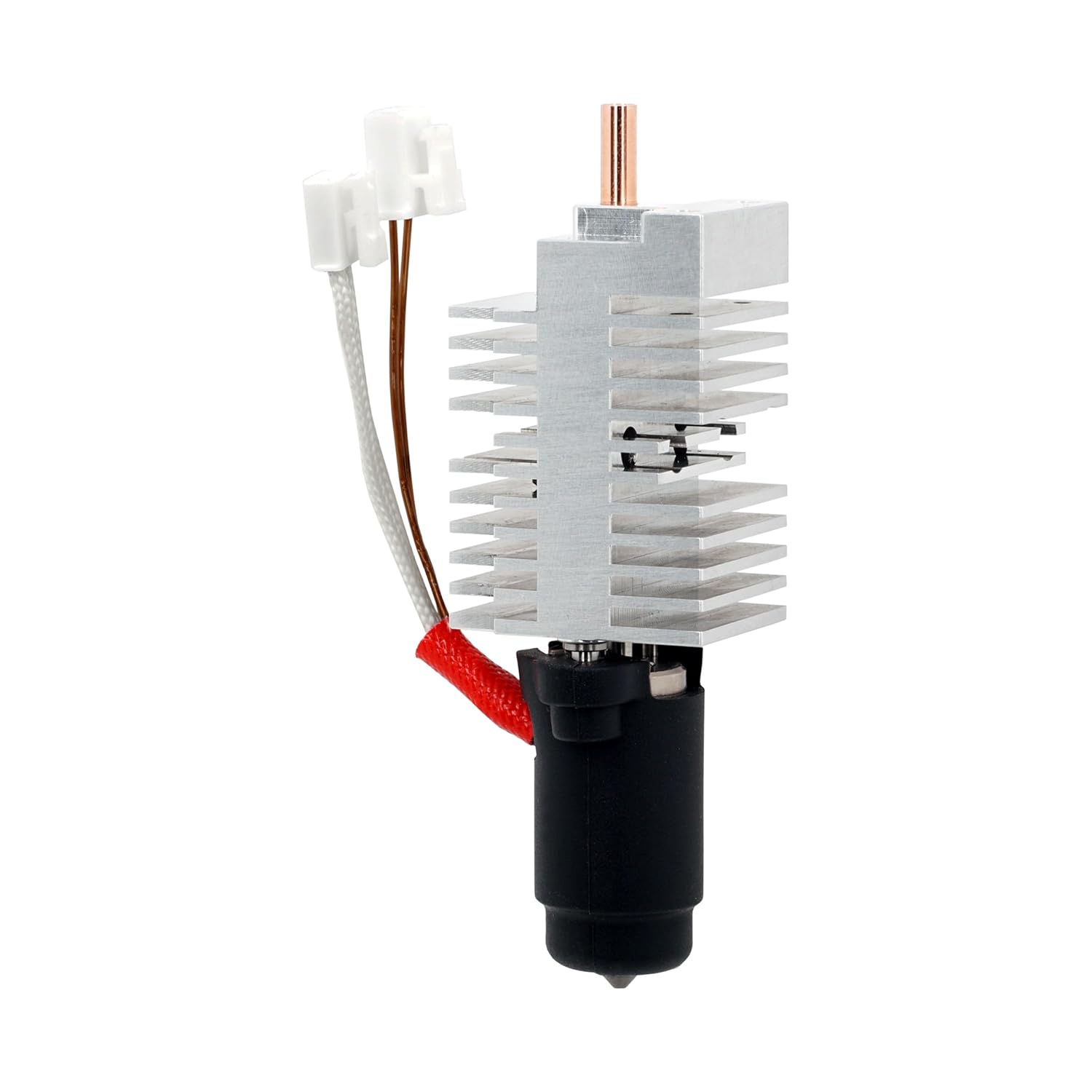
The Creality K2 Plus has established itself as a flagship machine, but for the “Engineering Enthusiast,” stock hardware is rarely the end of the road. In the latest installment of the K2 Plus Upgrade Series, I tackle a critical component swap: replacing the stock hotend with the Micro Swiss FlowTech system equipped with the CM2 High Flow Hardened Steel nozzle.

This guide covers the technical specifications, a direct weight comparison, and the step-by-step installation process to help you decide if this upgrade is right for your rig.


The primary motivation for this upgrade is flow performance and durability. While browsing upgrade paths, I secured the Micro Swiss FlowTech hotend, pairing it specifically with the CM2 High Flow nozzle.

It is important to distinguish between the nozzle options available for this ecosystem. Micro Swiss offers standard plated nozzles and generic high-flow versions, but the CM2 stands out because it utilizes hardened steel. This is a critical distinction for users printing with abrasive engineering materials like carbon fiber filled filaments.

The CM2 boasts a flow rate of 50 cubic millimeters per second, ensuring the hotend can keep up with the rapid kinematics of the K2 Plus.

📸 IMAGE PLACEHOLDER: Product shot of Micro Swiss FlowTech hotend and CM2 nozzle packaging

Micro Swiss FlowTech Hotend for Creality K2 Plus

High-performance hotend replacement designed specifically for the K2 Plus

Micro Swiss CM2 High Flow Hardened Steel Nozzle

50mm³/s flow rate, hardened steel for abrasive filaments

Before installation, I performed a side-by-side comparison of the OEM equipment versus the Micro Swiss replacement.

Stock K2 Plus Hotend

Stock K2 Plus Hotend

Micro Swiss FlowTech Hotend

Micro Swiss FlowTech Hotend

Visually, the Micro Swiss unit features significantly larger and more complex cooling fins, suggesting improved thermal management. Interestingly, the heating element section appears slightly smaller on the FlowTech compared to stock.

In terms of mass—a critical factor for input shaping calibration—the difference is negligible:

ComponentWeight
Stock Hotend44 grams
Micro Swiss FlowTech45 grams

This 1-gram difference confirms that the Micro Swiss is effectively a drop-in replacement that won’t drastically alter the toolhead’s mass characteristics. This means your existing input shaping profiles will remain largely valid.


The process begins by carefully unplugging the two connectors attached to the main breakout board. These connectors can be tight, so caution is required to avoid damaging the board headers.

Once disconnected, remove the two retaining screws located near the bottom plate of the hotend assembly.

When seating the new FlowTech hotend, proper orientation is vital:

  1. The unit features an indent that must face the front of the printer
  2. Ensure the wires are routed toward the front
  3. Position the brass wire at the top

Getting this orientation correct prevents issues with thermistor readings and ensures proper cooling fan operation.

With the hotend seated, reinstall the mounting screws:

  1. Loosely thread the front screws first
  2. Then secure the top screws
  3. Final tightening once everything is aligned

This sequence ensures the unit is properly aligned before final tightening and prevents cross-threading or misalignment.


Hardware installation is only half the battle. After powering on the machine, I verified that the thermistor was reporting ambient temperature correctly before attempting to heat the nozzle.

Because the mass and flow characteristics have changed slightly, users should run the full calibration suite:

  1. PID Tune: To ensure stable temperatures
  2. Input Shaping: To account for the slightly different weight distribution
  3. Auto-Leveling: To adjust for any Z-offset changes

To validate the install, I printed a 3DBenchy using ASA filament.

Results:

  • Extrusion quality: Excellent, consistent flow throughout
  • Layer adhesion: Perfect interlayer bonding
  • ⚠️ Bed adhesion: Lifting at the chimney (common with ASA on stock surface)

While the print suffered from a bed adhesion issue—a common struggle with ASA on stock build surfaces—the extrusion quality itself was excellent. The body of the Benchy looked “phenomenal,” confirming that the FlowTech is delivering consistent extrusion.


Creality K2 Plus Printer

Core XY high-speed printer

K2 Plus Hardened Extruder Gears

Prevent wear from abrasive filaments - highly recommended companion upgrade

This project is sponsored by PCBWay. Whether you need custom PCB prototyping, CNC machining, or 3D printing services for your next build, PCBWay offers professional-grade manufacturing solutions.

Check them out here: https://www.pcbway.com/


The Micro Swiss FlowTech hotend paired with the CM2 High Flow nozzle represents a meaningful upgrade for K2 Plus owners who:

  • Print with abrasive engineering materials (carbon fiber, glass fiber, etc.)
  • Need higher flow rates for large prints
  • Want improved thermal management
  • Seek longer nozzle lifespan

The near-identical weight means minimal impact on your existing calibrations, while the hardened steel construction ensures durability for hundreds of hours of printing.

Yes, if you:

  • Regularly print with abrasive filaments
  • Push high flow rates with large nozzles
  • Want to future-proof your hotend investment

Maybe wait if you:

  • Only print PLA/PETG with standard flow rates
  • Haven’t experienced issues with the stock hotend
  • Are on a tight budget

If you found this technical guide helpful in navigating your K2 Plus upgrades, consider supporting the channel directly.

Ko-fi: https://ko-fi.com/minimal3dp

YouTube: Subscribe to Minimal 3DP on YouTube for more upgrade guides and technical deep dives.


Disclaimer: This post contains affiliate links. Minimal 3DP may earn a small commission at no extra cost to you, which helps fund future technical deep dives.

Stop Guessing: Introducing the FDM Filament Recommendation Engine

One of the biggest problems I have in my 3D printing journey is simply trying to remember which filament is best for which scenario. If I need a UV-resistant filament for an outdoor part, or if I need to know if a specific engineering-grade material is actually printable on my current setup, digging through PDF Technical Data Sheets (TDS) takes forever.

To solve this, I’ve developed a new app: the FDM Filament Recommendation Engine.

You can watch my full video introduction here:

The Solution: A Data-Driven Filament Finder

Section titled “The Solution: A Data-Driven Filament Finder”

Link to Tool: filament.minimal3dp.com

The goal of this application is to let you sort, query, and filter through over 40 different materials to find the one that fits your specific project needs.

I developed this by analyzing various manufacturer TDS records, but I know those aren’t always perfectly accurate. To validate the data, I also cross-referenced peer-reviewed journal articles. I utilized AI to help extract and organize this massive amount of data into a usable format.

For those of you who saw the early version of this tool, I’ve made several updates based on my own testing and user feedback:

I originally had three different choices for “strength,” but they were all telling me the same thing. I have simplified this to just General Strength and Compressive Strength to make the data easier to read.

You can filter by “Printability.” If you back the slider off to an 8, you’ll see familiar materials like PLA and PETG. If you look at engineering materials like PC or ASA, you’ll see that score drop significantly—reflecting the real-world difficulty of printing those materials.

This is probably the most useful feature. You can select multiple filaments (for example, UV-resistant materials like ASA, PC, and others) and hit “Compare.” This gives you a side-by-side look at their cost score, heat compatibility, and stiffness.

I’ve added information on whether a material can be annealed—the process of heating the print after printing to make the material stronger and more dimensionally stable.

I have added a feedback form to the site. If you have a better source of data than the TDS sheets or journal articles I have used, please feel free to submit it. My goal is to make this a complete repository of knowledge for us to use.

This project is sponsored by PCBWay. I want to thank them for their continued support of the Minimal 3DP channel.

If you are working on a project that requires custom PCBs, I highly recommend checking out their design services. They have powerful tools on their website to get an instant quote, and their help with PCB design layout starts at just $88.70 US.

Looking for more 3D printing tools and guides?


If you found this tool helpful, you can support my work here:

K2 Plus Upgrade Series Part 1: All-Metal Extruder Gear Kit

Intro motivation; stock limitations; goals (reliability, higher flow, reduced wear).

Series Navigation: Part 1 (Current) · Part 2 (Nozzle Wiper) · Part 3 (Klipper & Profile)

List gear kit components, required tools, affiliate links placeholders.

  1. Disassemble stock extruder
  2. Inspect drive gears & tensioner
  3. Install all-metal gear kit
  4. Reassemble & tension spring

Common issues (slipping, grinding, inconsistent extrusion) and fixes.

Continue with Part 2: Nozzle Wiper Module or jump ahead to Part 3: Klipper Installation & Profile.

K2 Plus Upgrade Series Part 2: Nozzle Wiper Module

Why nozzle hygiene matters; benefits for automation.

Module components; mounting hardware; safety precautions.

  1. Positioning and alignment
  2. Mounting hardware torque guidance
  3. Firmware/macros adjustments (Klipper snippets placeholder)

First layer test; stringing reduction examples.

Link back to Part 1 and forward to Part 3 (Klipper install + profile).

K2 Plus Upgrade Series Part 3: Klipper Installation & OrcaSlicer Profile

Transformation benefits: speed, macro control, print quality.

Completed Part 1 & 2; hardware state summary.

Flash process; configuration file sections; CAN notes (future expansion).

Baseline settings; acceleration, input shaping references; filament presets.

Speed vs quality trade-offs; sample prints.

Summarize improvements; invite feedback; internal links to related guides.

Mastering Bed Types in OrcaSlicer: Automate Z-Offsets and Temperatures

I found a feature that is incredibly powerful for anyone running multiple build plates on a single printer: specifying bed types.

If you swap between a smooth PEI sheet, a textured plate, or a cool plate, you usually have to manually adjust your Z-offset or run a bed level every time. However, OrcaSlicer allows you to automate this process, saving your Z-offset and temperature settings based on the specific bed you select. For broader slicer tuning, visit the OrcaSlicer Tutorials Hub.

OrcaSlicer generally supports four standard bed definitions: Cool Plate, Engineering Plate, High Temp Plate, and Textured PEI Plate. Even if your specific brand of plate isn’t listed, you can use these presets as placeholders to trigger specific settings.

To enable this feature:

  1. Open OrcaSlicer and go to Printer Settings.
  2. Check the box for “Support multiple bed types”.
  3. Once enabled, you will see a dropdown menu allowing you to select your active bed type directly in the main interface.

One immediate benefit of this feature is temperature management. Different bed materials require different surface temperatures.

For example, I typically use a smooth PEI high-temp plate at 60°C. However, I recently started using the BigTreeTech MENT BQ Cryo Grip ProGlacial beds. These are double-sided (smooth and textured), but they run best about 5 to 10 degrees cooler than standard PEI.

By utilizing the bed type settings in the Filament tab, I can assign specific temperatures to specific plate types (e.g., setting the “Cool Plate” slot to 55°C). This allows me to “set it and forget it”—the slicer handles the temp change automatically based on the bed I select.

The most powerful application of this feature is automating your Z-offset. To make this work, you need to pass the bed type variable from OrcaSlicer to your printer’s start code. After implementing this, refine extrusion consistency using Flow Calibration and ringing reduction with Input Shaping.

In your OrcaSlicer machine start G-code, you need to add a specific variable so the printer knows which bed is selected. The code looks like this:

{if curr_bed_type=="Textured PEI Plate"}
SET_GCODE_OFFSET Z=-0.05
{else}
SET_GCODE_OFFSET Z=0.0
{endif}

Available bed types are:

Terminal window
"Cool Plate"
"Engineering Plate"
"High Temp Plate"
"Textured PEI Plate"

This line sends the current bed selection to your printer’s configuration. For more macro examples see the Klipper Calibration Hub.

Once the printer receives the variable, you can use conditional logic (If/Else statements) in your printer’s configuration (like Klipper macros) to adjust the Z-offset.

Based on examples found on the Creality K2 Plus forums and AI-generated code, the logic works as follows:

  • Capture the Variable: The macro grabs the uppercase variable CURR_BED_TYPE.
  • If/Else Statements: The printer checks which bed is active and applies a specific offset.
    • Example: If using a glass plate, set Z-offset to 0.
    • Example: If using Textured PEI, set Z-offset to -0.03.
  • Fallback: You can include an else statement to handle any unknown bed types.

This feature adds a layer of convenience and optimization to your workflow. Whether you are looking to automate temperature changes for Cryo Grip plates or swap between smooth and textured sheets without releveling, specifying bed types in OrcaSlicer is a game changer.

Thanks for stopping by! I’m still recovering, so I appreciate your patience if this wasn’t up to my usual standards, but I look forward to talking to you again soon.

Have questions about your start G-code? Leave a comment on the video!

Stop Guessing: I Built a FREE App for Your Best 3D Slicer Settings

Hey, this is Mike from Minimal3DP.

I’ve had a lot of time to think recently while recovering from heart surgery, and I put that time to use. Today, I want to talk about “the best 3D printer slicer settings” and what that really means.

We’ve all seen videos (even from my own channel) about the “best” settings. But when you open a modern slicer—my choice is OrcaSlicer—you’ll find hundreds, maybe thousands of different settings. The truth is, there is no single perfect setting for every scenario.

  • ✅ Why there’s no “one size fits all” slicer setting
  • ✅ How to use academic research to optimize your prints
  • ✅ How the new OrcaSlicer Expert Assistant works
  • ✅ How to prioritize settings for strength, speed, quality, or accuracy
  • ✅ What 130+ manufacturer data sheets reveal about filament properties

The Problem: Too Many Settings, Not Enough Guidance

Section titled “The Problem: Too Many Settings, Not Enough Guidance”

Instead of claiming one perfect setting exists, what we’re really doing is optimizing for a specific goal, whether that’s:

  • Aesthetics and quality - For display models and miniatures
  • Strength - For functional parts and mechanical components
  • Flexibility - For parts that need to bend or compress
  • Surface roughness - For smooth finishes or specific textures
  • Dimensional accuracy - For parts that must fit together precisely

Each goal requires different settings, and that’s where most tutorials fall short.

My Approach: Using Research, Not Just Opinion

Section titled “My Approach: Using Research, Not Just Opinion”

Rather than just giving you my opinion, I’m a big proponent of using Google Scholar. It’s a search engine for academic papers and journal articles. I typically filter my searches to find new articles (e.g., since 2021) to see what parameters affect what properties.

For example, a quick search for “FDM 3D printing process parameters” brings up articles that show exactly how slicer settings impact mechanical properties. I found one article I really like that provides a systematic survey of these parameters and their influence on part characteristics. It has a great diagram showing how settings affect:

  • Build time
  • Dimensional accuracy
  • Surface roughness
  • Flexural, compressive, and tensile strength

This research is incredibly helpful, but it’s not easy for everyone to parse. So, I started working on a program to help pull these settings from journal articles and give you a clear reference.

Introducing: The OrcaSlicer Expert Assistant

Section titled “Introducing: The OrcaSlicer Expert Assistant”

I’m excited to show you what I’ve built: The OrcaSlicer Expert Assistant.

➡️ Try the FREE app now:
https://settings.minimal3dp.com
No registration required • Works in your browser • Based on real research

While it’s named for OrcaSlicer, the principles and recommendations should work for any slicer you use, including PrusaSlicer and Cura.

The tool is designed to be simple and intuitive.

First, you select the filament you want to use. This is more than just a name—I’ve fed data from over 130 manufacturer technical data sheets into the app. I used AI to extract all the technical information (strength, heat distortion, glass transition temperature, chemical resistance, etc.) from those PDFs.

This means when you select a material like ABS, the app will give you:

Important Warnings:

  • 🔥 Heated enclosure required
  • 💧 Must be dried before use
  • 🌫️ Ventilation needed (releases fumes)

Material Benefits:

  • ✅ Good chemical resistance
  • ✅ High strength-to-weight ratio
  • ✅ Good heat resistance

You can also check out my complete filament guide for more details on each material type.

Next, you set your print priority on a scale from 0 (I don’t care) to 100 (max priority) for four key areas:

  • 💪 Strength: For functional parts, tools, and mechanical properties
  • ⚡ Speed: Great for iterating on a design and rapid prototyping
  • ✨ Quality: For display models, miniatures, and aesthetics
  • 📏 Accuracy: Critical for prints that need to fit together

The app understands that these priorities often conflict. For example, maximum speed usually reduces quality. The tool balances these trade-offs based on your priorities.

Once you hit “Get Expert Recommendations,” the tool analyzes your priorities and the filament data to give you a solid starting point.

Example 1: Dimensional Accuracy Priority

If you set Dimensional Accuracy to 100%:

  • ⚠️ The app will point out that shrinkage is a factor
  • 🐌 Recommend a slower outer wall speed (improves precision)
  • 🕸️ Recommend using the Arachne wall generator (better dimensional control)
  • 📐 Suggest layer height of 0.12 to 0.16mm (optimal for accuracy)

Example 2: Strength + Speed Priority

If you bump up Mechanical Strength and Build Time:

  • 🔥 Recommend higher print temperatures (better layer adhesion)
  • 📊 Suggest specific infill patterns (grid or honeycomb for strength)
  • ⚙️ Optimize speeds and acceleration for faster prints
  • 🎯 Balance layer height for strength vs speed trade-off

What makes this tool different from other “best settings” guides:

130+ manufacturer technical data sheets analyzed
Academic research from peer-reviewed journals
Systematic approach to parameter optimization
Material-specific recommendations based on properties
Priority-based balancing of conflicting goals

None of this is “perfect,” but it’s designed to give you a clear idea of how to set your settings in your slicer based on actual research, not just my opinion.

I’m not saying this is the be-all, end-all, but if you’re new to 3D printing and trying to figure out what settings to use, this should be a great start for you.

If you find the OrcaSlicer Expert Assistant helpful, check out my other free calculators:

I did add some affiliate links for different filaments on the side of the app. My hope is that this will help generate a little revenue that I can plow right back into my work for the channel and developing more free tools for the community.

If you’d like to support my work:

Is the OrcaSlicer Expert Assistant really free?

Yes! The app is 100% free with no registration required. It runs entirely in your browser and doesn’t collect any personal data. I may add affiliate links to filament brands to help support development.

Will this work with other slicers like PrusaSlicer or Cura?

Yes! While it’s designed for OrcaSlicer, the principles and most settings translate directly to PrusaSlicer (OrcaSlicer’s parent), Cura, and other FDM slicers. The parameter names might be slightly different, but the concepts are universal.

How accurate are the recommendations?

The recommendations are based on peer-reviewed academic research and technical data from 130+ manufacturer data sheets. However, they’re starting points that should be refined through calibration for your specific printer, material batch, and environment. Think of it as an educated starting point rather than a final answer.

What if I have multiple priorities (e.g., both strength AND quality)?

That’s exactly what the priority sliders are for! Set each priority from 0-100, and the app will balance the recommendations. For example, if you set both strength and quality to 80, it will find settings that optimize both without sacrificing too much of either.

Which filaments are included in the database?

The app includes data for major filament types (PLA, PETG, ABS, ASA, Nylon, TPU, etc.) compiled from 130+ manufacturer technical data sheets. Check my complete filament guide for detailed comparisons.

Can I request new features or report bugs?

Absolutely! Please email me at minimal3dp@gmail.com or comment on the YouTube video. I’m actively developing this tool and appreciate all feedback from the community.

Please, check out the app and let me know what you think. If you have any questions, comments, or notice any errors, please let me know.

🚀 Launch the OrcaSlicer Expert Assistant

https://settings.minimal3dp.com

Get research-backed slicer settings in seconds

After you get your recommended settings:

  1. Calibrate your printer - Ensure your printer is properly calibrated
  2. Learn OrcaSlicer features - Master the slicer’s advanced features
  3. Calculate print costs - Know the true cost of your prints
  4. Join the community - Ask questions and share results

I look forward to talking to you again soon. Thanks, and have a great day!


The Ultimate 3D Printing Filament Guide (2025) - Every Material Tested

Choosing the right 3D printing filament can make or break your project. After years of testing dozens of brands and materials, I’ve compiled this comprehensive guide to help you find the perfect filament for any application.

Quick Navigation:


PLA (Polylactic Acid) is the most popular 3D printing filament for good reason: it’s easy to print, doesn’t require a heated bed, and produces minimal odor. Perfect for beginners and decorative prints.

SUNLU PLA 3D Printer Filament

Best budget choice. SUNLU’s PLA offers exceptional value with excellent layer adhesion and dimensional accuracy. At under $14/kg, it’s my go-to for everyday printing.

Pros: Affordable, consistent diameter, great color selection
Cons: Slightly more brittle than premium brands
Best for: Prototypes, decorative prints, learning

$13.99

OVERTURE PLA Filament

Premium quality. OVERTURE is known for incredibly consistent diameter control (±0.03mm) and smooth finish. If you need reliability for important prints, this is worth the extra $6.

Pros: Consistent quality, smooth surface, minimal stringing
Cons: Higher price point
Best for: Final parts, gifts, detailed models

$19.99

Also Consider:

  • ELEGOO PLA ($16.99) - B0D421Q2Q2 - Vibrant colors, good middle-ground option
  • eSUN PLA ($17.99) - B0CS2XHNKL - Reliable basic PLA from a trusted brand

PLA+ offers significantly better layer adhesion and impact resistance compared to standard PLA, making it ideal for functional parts that need more durability.

eSUN PLA+ Filament

The industry standard. eSUN’s PLA+ is the original and still one of the best. Prints like PLA but with 3-4x the impact strength. Perfect bridge between ease-of-use and functionality.

Pros: Excellent toughness, minimal warping, easy to print
Cons: Slightly higher printing temperature
Best for: Functional parts, tools, fixtures

$20.99

Budget Alternative:

  • LANDU PLA+ ($17.99) - B0D69RV8W1 - Cost-effective with excellent strength

SUNLU 3D Printer Silk Filament

Beautiful silk finish with metallic sheen. Perfect for decorative items, jewelry, and artistic prints. The copper and gold colors are especially stunning.

Tip: Print slowly (40-50mm/s) for best surface finish.

$19.99

Creality Wood Filament PLA

Natural wood fiber composite with authentic wood texture. Can be sanded and stained like real wood. Great for decorative items, models, and artistic projects.

Tip: Vary temperature (190-220°C) during print to create wood grain effect.

$19.99

ELEGOO Carbon Fiber PLA Filament

Carbon fiber reinforced PLA for enhanced rigidity. Excellent dimensional stability and a premium matte finish. Warning: Use hardened steel nozzle to prevent wear.

Best for: Drone parts, RC car components, rigid structures

$24.99

AMOLEN Glow in The Dark PLA Filament

Luminous PLA that glows in the dark after light exposure. Fun for kids’ projects, decorations, and practical items like light switch covers.

Tip: “Charge” with UV light or bright LED for strongest glow.

$21.99

PETG combines the ease of PLA with the strength of ABS. It’s my top choice for functional parts that need durability without requiring an enclosure.

OVERTURE PETG 3D Printer Filament

Best all-around PETG. OVERTURE’s PETG offers excellent layer adhesion, minimal warping, and good chemical resistance. Perfect for mechanical parts, containers, and outdoor items.

Print Settings: 235-245°C hotend, 70-80°C bed
Pros: Strong, flexible, chemical resistant
Cons: Can be stringy (use retraction tuning)
Best for: Mechanical parts, containers, outdoor items

$21.99

Budget Options:

  • SUNLU PETG ($18.99) - B0DJS3PJVX - Reliable quality at best price
  • Creality PETG ($19.99) - B0C8NP63GD - Strong and flexible

For parts requiring heat resistance and durability, ABS and ASA are your go-to materials. Requires enclosure to prevent warping.

Polymaker ABS Filament

Premium ABS with minimal warping. Polymaker’s formula is easier to print than standard ABS and produces less odor. Excellent for automotive parts and functional components.

Print Settings: 240-250°C hotend, 100-110°C bed, requires enclosure
Best for: Automotive parts, tools, high-temp applications

$29.99

Polymaker ASA Filament

Best for outdoor use. ASA has excellent UV resistance (won’t fade or degrade in sunlight) while maintaining ABS’s strength and heat resistance. Perfect for outdoor fixtures, signs, and garden items.

Why ASA > ABS for outdoors: Won’t yellow or become brittle from UV exposure
Best for: Outdoor fixtures, automotive trim, signage

$29.99

Flexible filaments open up entirely new applications. Print phone cases, seals, gaskets, and flexible parts.

OVERTURE TPU Filament (95A)

Best TPU for beginners. 95A hardness offers good balance between flexibility and printability. Works on most direct drive printers without modifications.

Print Settings: 220-230°C, slow speed (20-30mm/s), direct drive recommended
Pros: Excellent elasticity, durable, abrasion resistant
Best for: Phone cases, gaskets, bumpers, wearables

$23.99

More Flexible Option:

  • OVERTURE TPU 85A ($29.99) - B0CYPGVK4D - Ultra-flexible for specialized applications

Engineering-grade material with excellent mechanical properties. Hygroscopic - requires dry box or dryer.

OVERTURE Nylon Filament

Strong and flexible nylon for mechanical parts. Excellent wear resistance and low friction coefficient make it perfect for gears, bushings, and living hinges.

Print Settings: 250-270°C hotend, 70-80°C bed, must keep dry
Best for: Gears, bushings, mechanical parts, living hinges

$27.99

Polymaker Fiberon PA612-CF Carbon Fiber Nylon

Industrial-grade material for demanding applications. CF-reinforced nylon offers incredible stiffness and dimensional stability. Requires hardened steel nozzle.

Best for: Drone frames, RC parts, tooling, jigs and fixtures

$69.99

Polymaker HT-PLA-GF Filament

Heat-stabilized PLA+ with enhanced temperature resistance. Can withstand temps up to 90°C after annealing. Prints like PLA but performs like engineering plastic.

Process: Print normally, then anneal at 100°C for 1 hour in oven
Best for: Functional parts, automotive, under-hood applications

$25.49

Polymaker Polycarbonate Filament

Virtually unbreakable. PC is used for bulletproof glass and riot shields. Excellent for protective cases, safety equipment, and impact-resistant parts.

Print Settings: 270-290°C, 100-120°C bed, enclosed printer required
Best for: Protective cases, safety equipment, high-impact applications

$39.99

For complex prints with overhangs, water-soluble supports make post-processing effortless.

SUNLU PVA Filament

Best water-soluble support. PVA dissolves completely in water, leaving perfect surface finish. Essential for dual-extrusion printers printing complex geometries.

Usage: Print PVA as support, soak in water 12-24 hours, supports dissolve completely
Compatible with: PLA, PETG (at lower temps)
Storage: Keep sealed with desiccant - extremely hygroscopic

$32.99

Alternative:

  • Polymaker PVA ($34.99) - B09KL8WBRY - Premium quality for critical prints

Filament Dryer (Critical for Nylon, PETG, PVA)

Section titled “Filament Dryer (Critical for Nylon, PETG, PVA)”

Creality Official Filament Dryer Box

Efficient filament dryer with adjustable temperature. Essential for hygroscopic materials like Nylon, PETG, and PVA. Prevents moisture-related print issues.

Why you need this: Moisture in filament causes:

  • Bubbling and popping during extrusion
  • Poor layer adhesion
  • Stringing and oozing
  • Brittle prints
$39.99

Decorative / Display:

  • Standard PLA - Best value
  • Silk PLA - Metallic sheen
  • Wood PLA - Natural texture

Functional Parts (Indoor):

  • PLA+ - Good strength, easy to print
  • PETG - Better impact resistance
  • Nylon - Maximum durability

Functional Parts (Outdoor):

  • ASA - UV resistant, weatherproof
  • PETG - Good all-around choice

Flexible / Elastic:

  • TPU 95A - Phone cases, bumpers
  • TPU 85A - Ultra-flexible applications

Heat Resistance:

  • ABS - Up to 100°C
  • ASA - Up to 100°C + UV stable
  • Nylon - Up to 120°C
  • HT-PLA (annealed) - Up to 90°C
  • Polycarbonate - Up to 140°C

Engineering / High-Strength:

  • Nylon - Mechanical parts
  • Nylon CF - Maximum stiffness
  • PC - Impact resistance
  • PETG CF - Engineering parts

  • Temperature: 200-220°C (hotend), 50-60°C (bed optional)
  • Speed: 50-80mm/s
  • Cooling: 100%
  • Easy: Best for beginners
  • Temperature: 235-245°C (hotend), 70-80°C (bed)
  • Speed: 40-60mm/s
  • Cooling: 0-50% (less is better)
  • Tip: Use glue stick on bed for easy removal
  • Temperature: 240-250°C (hotend), 100-110°C (bed)
  • Speed: 40-60mm/s
  • Cooling: 0-20%
  • Required: Enclosed printer, ventilation
  • Tip: Draft shield helps prevent warping
  • Temperature: 250-270°C (hotend), 70-80°C (bed)
  • Speed: 30-50mm/s
  • Cooling: 0-30%
  • Critical: Must store in dry box, dry before printing
  • Temperature: 220-230°C (hotend), 40-60°C (bed)
  • Speed: 20-30mm/s (slow!)
  • Cooling: 0-50%
  • Recommended: Direct drive extruder

Keep Filament Dry:

  1. Store in sealed bags with desiccant
  2. Use filament dry box for hygroscopic materials (Nylon, PETG, PVA)
  3. Dry before printing if absorbed moisture

Signs of Wet Filament:

  • Popping/crackling sounds during extrusion
  • Excessive stringing
  • Poor layer adhesion
  • Brittle prints

Drying Guide:

  • PLA: 45-50°C for 4-6 hours
  • PETG: 60-65°C for 4-6 hours
  • Nylon: 70-80°C for 8-12 hours
  • PVA: 45-50°C for 4 hours

Q: What’s the best filament for beginners?
A: Standard PLA. It’s affordable, easy to print, and doesn’t require a heated bed. Start with SUNLU PLA ($13.99) for best value.

Q: Can I print PETG without an enclosure?
A: Yes! PETG prints well without enclosure, unlike ABS/ASA. Just use 70-80°C bed temp and minimal cooling.

Q: Do I need a special nozzle for carbon fiber filaments?
A: Yes, hardened steel nozzle is essential. Brass will wear out quickly from abrasive CF particles.

Q: How long does filament last in storage?
A: PLA/PLA+: 1-2 years if kept dry. PETG/Nylon: 6-12 months. Always use desiccant in storage.

Q: Why is my nylon print brittle?
A: Most likely moisture absorption. Dry your nylon for 8-12 hours at 70-80°C before printing.

Q: Can I mix brands/materials?
A: Yes for same material type (different PLA brands work fine together). No for different materials in same print without proper interface settings.


Choosing the right filament depends on your specific application:

  • Just starting out? SUNLU PLA ($13.99)
  • Need strength? eSUN PLA+ ($20.99)
  • Functional parts? OVERTURE PETG ($21.99)
  • Outdoor use? Polymaker ASA ($29.99)
  • Flexible parts? OVERTURE TPU ($23.99)
  • Engineering? Nylon or Nylon CF

Remember: The “best” filament is the one that meets your specific needs at the right price point. Don’t overspend on engineering materials for decorative prints, but don’t compromise on quality for functional parts.

Have questions about which filament is right for your project? Drop a comment below and I’ll help you choose!


This post contains affiliate links. As an Amazon Associate, I earn from qualifying purchases at no cost to you. All recommendations are based on personal testing and experience.

M3DP 3D Print Cost Calculator

If you’ve ever thought about selling your 3D prints, one of the first and biggest hurdles is figuring out how to price them accurately. Most people just look at the material and electricity costs, but that’s a quick way to lose money.

I recently read an article called “Refined Cost Calculation Framework for FDM Parts,” which breaks down the entire cost process into much greater detail. It factors in everything:

  • Machine costs and energy
  • Tooling costs (like nozzle wear and build sheet lifespan)
  • Material and model costs
  • Labor costs (for setup, slicing, and post-processing)

This model is far more accurate, but the one major problem is that with so many inputs, it’s incredibly hard to keep it all straight.

I started building a spreadsheet to manage this for myself, and… well, it turned into a full-blown web tool.

Introducing the M3DP 3D Print Cost Calculator

Section titled “Introducing the M3DP 3D Print Cost Calculator”

I’ve created a 3D Print Cost Calculator that’s now live on my website. You can find it under the “M3DP Tools” menu item.

This tool is designed to help you capture all those hidden costs and generate a detailed quote, which you can save for your own records or print as a PDF to send to a customer.

In it, you can dial in specific parameters for:

  • Labor: Set your own hourly rate for slicing, machine setup, and post-processing.
  • Machine: Input your machine’s cost and estimated lifespan in hours.
  • Components: Add costs and lifespans for your nozzle and build plate (I found research suggesting a PEI sheet can last 5,000+ hours!).
  • Failure Rate: Add a percentage to help cover the cost of failed prints.
  • Markup: Add a final markup to the total calculated value.

One of the most important features: everything is saved 100% client-side. It all stays on your machine; nothing is saved to my server. You can even save and load different setting profiles.

I put together a video walking through the entire calculator, using a real-world part as an example. I show you where to find the tool, how to pull the data from your slicer, and how to fill out every field.

Watch the full video on YouTube: https://youtu.be/nA_-z5UbBJY

This tool is brand new, and I’m still testing it and adding features.

Please check it out, give it a try, and let me know what you think. If you see any errors, have suggestions for new features, or think of any costs that I’m not currently capturing, please let me know in the video comments or contact me through the site.

Hopefully, this helps you price your prints more accurately and professionally. I look forward to hearing what you think!


The methodology for this calculator was based on the concepts presented in the following research, which is also referenced within the tool itself:

OrcaSlicer 2.3.1 Alpha Just Dropped & How to Use the New Flow Rate Calibration

Mastering Extrusion: A Deep Dive into OrcaSlicer’s New Archimedean Flow Calibration

Section titled “Mastering Extrusion: A Deep Dive into OrcaSlicer’s New Archimedean Flow Calibration”

From Subjective Guesswork to Visual Precision: A Step-by-Step Guide to Perfecting Your Flow Rate with the OrcaSlicer 2.3.1 Alpha Feature

Section titled “From Subjective Guesswork to Visual Precision: A Step-by-Step Guide to Perfecting Your Flow Rate with the OrcaSlicer 2.3.1 Alpha Feature”

The Next Evolution in Slicing: Introducing OrcaSlicer 2.3.1 Alpha

Section titled “The Next Evolution in Slicing: Introducing OrcaSlicer 2.3.1 Alpha”

If you’re like me, you’re constantly on the lookout for the latest and greatest features to elevate your 3D prints from good to flawless.1 This relentless pursuit of perfection is the lifeblood of the 3D printing community, and it’s a spirit embodied by the team behind OrcaSlicer. More than just a piece of software, OrcaSlicer has established itself as a dynamic, open-source project at the vanguard of Fused Deposition Modeling (FDM) technology.2 It’s a slicer built by and for the community, characterized by a rapid development cycle that consistently delivers powerful, cutting-edge tools into our hands.

It is in this spirit of continuous innovation that the developers have released OrcaSlicer version 2.3.1 Alpha.1 This isn’t just a minor update; it’s a significant leap forward, offering an exciting glimpse into the future of slicing. This release is packed with enhancements that promise to refine our workflows and improve our print quality in tangible ways.

A Glimpse of the Future: What’s New in Version 2.3.1 Alpha?

Section titled “A Glimpse of the Future: What’s New in Version 2.3.1 Alpha?”

The 2.3.1 Alpha release is a treasure trove of new functionalities that address various aspects of the printing process. While this guide will focus on one revolutionary feature, it’s worth taking a moment to appreciate the breadth of improvements included in this update.1 The key additions are:

  • A new sparse infill rotation system for stronger, more efficient internal structures.
  • Substantial changes and improvements to the fuzzy skin feature, offering more creative control over surface textures.
  • Integrated input shaping calibration for printers running Klipper firmware.
  • A new junction deviation calibration test for users with Marlin-based machines.
  • And, the focus of our deep dive today, a completely redesigned and more intuitive method for flow rate calibration.1

Each of these features deserves its own detailed exploration, and I plan to cover them in future articles and videos. However, the new flow calibration method represents such a fundamental shift in approach and offers such a significant improvement in accuracy and ease of use that it warrants a dedicated, comprehensive guide. My goal here is to provide a focused, exhaustive walkthrough that will empower you to master this new tool immediately, without wasting your time.1

Multimedia Integration: Watch the Guide in Action

Section titled “Multimedia Integration: Watch the Guide in Action”

For those who prefer a visual demonstration, I have created a complete video walkthrough that complements this written guide. You can watch it to see the entire process in action, from launching the test in OrcaSlicer to analyzing the physical prints.

The Philosophy of Alpha Releases in Open Source

Section titled “The Philosophy of Alpha Releases in Open Source”

Before we dive into the technical details, it’s important to understand the context of an “Alpha” release. In the world of open-source software, an alpha version is far more than just an early, potentially unstable preview. It represents a philosophical choice that lies at the heart of community-driven development.2 Unlike the closed, internal testing of proprietary software, a public alpha is a transparent invitation for the most engaged users to become active participants in the development process.

The OrcaSlicer project thrives on this collaborative model, offering not just stable releases but also “Nightly Builds” for those who want to test the absolute latest code.2 When you download and use OrcaSlicer 2.3.1 Alpha, you are not merely a consumer; you are a collaborator. The feedback you provide, particularly through well-documented bug reports, is invaluable data that helps the developers refine, debug, and perfect these new features before they are rolled into a stable release.1 This guide will not only show you how to use the new flow calibration but also how to responsibly contribute back to the project that provides these powerful tools for free.

From Subjective Feel to Objective Data: A Paradigm Shift in Flow Calibration

Section titled “From Subjective Feel to Objective Data: A Paradigm Shift in Flow Calibration”

The Old Way: Limitations of the Diagonal Surface Test

Section titled “The Old Way: Limitations of the Diagonal Surface Test”

To fully appreciate the brilliance of the new flow calibration method, we must first understand the limitations of the one it replaces. For a long time, flow rate calibration in OrcaSlicer (and many other slicers) involved printing a series of square patches, each with a different flow modifier.[4, 5] The top surface of these squares was printed with a simple diagonal line pattern, moving back and forth at a 45-degree angle.1

The process for determining the correct flow rate was almost entirely subjective. The official instruction was to run your fingers across the printed squares and select the one that felt the smoothest to the touch.1 While this method can work, its effectiveness is heavily dependent on the user’s experience and tactile sensitivity. A beginner might struggle to discern the subtle differences between patches, while even an expert’s judgment could be influenced by lighting or the specific texture of the filament. This subjectivity was the primary weakness of the old system, creating a barrier to achieving consistent, repeatable results.

Introducing the Archimedean Chord: A Smarter Pattern for a Smarter Slicer

Section titled “Introducing the Archimedean Chord: A Smarter Pattern for a Smarter Slicer”

The 2.3.1 Alpha release replaces the ambiguous diagonal pattern with a far more intelligent design: a concentric pattern based on an Archimedean chord.1 This isn’t just a cosmetic change; it’s a fundamental re-engineering of the test based on geometric principles.

An Archimedean spiral is a shape defined by a path that moves away from a central point at a constant angular velocity. In simpler terms, the distance between each successive turn of the spiral remains constant. When the toolhead of a 3D printer traces this path, it should lay down a series of perfectly concentric lines with a uniform gap between them. This geometric purity is the key to the test’s effectiveness. Any deviation from the ideal amount of extruded filament—either too much or too little—will immediately disrupt this perfect, repeating pattern in a way that is visually and tactically obvious.

Unlike the old diagonal pattern, where over-extrusion might simply result in a slightly rougher surface, the Archimedean pattern provides clear, unmistakable evidence. This new test, as highlighted in the updated OrcaSlicer wiki, is now the recommended method for dialing in your flow rate.1

This evolution from a tactile, experience-based method to a visually explicit one represents more than just a technical upgrade; it’s a move that democratizes precision in 3D printing. It effectively lowers the barrier to entry for achieving one of the most critical calibrations, empowering users of all skill levels to diagnose and resolve extrusion issues with a newfound level of confidence.

The old method relied on an acquired skill—a developed “feel” for surface smoothness that created a knowledge gap between newcomers and seasoned veterans.1 The new test replaces this subjectivity with objective, observable data. Over-extrusion presents itself as distinct ridges where “the edge of the circle is really sticking out,” while under-extrusion creates clear “valleys” or gaps between the lines.1 These are not matters of opinion; they are measurable physical artifacts.

This aligns perfectly with OrcaSlicer’s overarching mission: to package “advanced calibration tools” within a “user-friendly interface” that supports a “wide printer compatibility”.2 By making a foundational calibration process like flow rate easier to perform and more reliable to interpret, the software empowers a much broader range of users to achieve superior print quality. It removes the gatekeeper of subjective “feel” and replaces it with the clarity of visual evidence. This new feature is a perfect encapsulation of the project’s philosophy: it doesn’t just add power for experts; it engineers that power in a way that elevates the entire community.

A Practical Guide: Dialing in Your Flow Rate with the New Test

Section titled “A Practical Guide: Dialing in Your Flow Rate with the New Test”

Before you jump into printing the new calibration test, a little preparation will ensure you get the most accurate results possible.

First, this test is designed to refine an existing flow rate, not to establish one from absolute zero. It is most effective when you start with a filament profile that is already reasonably well-configured. The calibration test works by applying small positive and negative modifiers to your filament’s current flow ratio setting. As the transcript notes, “it doesn’t reset it back to one. It’s based on what it’s currently set at”.1 So, if your filament profile’s flow ratio is already set to 0.98, the test chips will be modifiers based on that value.

Second, for the most scientifically accurate calibration, it’s crucial to follow the recommended order of operations. According to the official OrcaSlicer wiki, you should always calibrate temperature before calibrating flow rate.4 The temperature of your nozzle directly affects the viscosity of the filament, which in turn impacts how it flows. Dialing in your temperature first ensures that you are calibrating flow under the correct thermal conditions.

With your slicer open and your printer profile selected, launching the new test is straightforward.

  1. Navigate to the top menu bar.
  2. Click on the “Calibration” dropdown.
  3. Select “Flow Rate.” A new test plate will be automatically generated in your workspace.

You will see a series of small, square chips laid out on the build plate. Each chip is labeled with a modifier value, such as 0, -0.01, +0.01, etc. This is the new, recommended test that utilizes the Archimedean pattern.1

Once the test plate is generated, simply slice it using the filament profile you wish to calibrate and send it to your printer. While it’s printing, prepare a well-lit area for inspection. Good lighting is critical for visually identifying the subtle surface differences between the test chips.

Step 3: Interpreting the Print – The Art of Sight and Touch

Section titled “Step 3: Interpreting the Print – The Art of Sight and Touch”

This is the most critical part of the process. Once the print is finished and has cooled, carefully remove it from the build plate. You will now analyze each chip, using both your eyes and your fingertips, to find the one that represents the “Goldilocks” zone of perfect extrusion.

Over-extrusion occurs when the printer pushes out too much filament. On the Archimedean pattern, this is incredibly easy to spot.

  • Visual Cues: Look for concentric circles where the edges are raised and pronounced. As the transcript describes, “the edge of the circle is really sticking out”.1 This happens because the excess plastic has nowhere to go and is forced upwards, creating distinct ridges. The surface may look overly glossy and lose fine detail.
  • Tactile Cues: When you run your finger across an over-extruded chip, it will feel bumpy and rough. You will be able to clearly feel the ridges formed by the excess filament. The chips with positive modifiers (e.g., +0.03, +0.05) are most likely to exhibit these characteristics.

Under-extrusion is the opposite problem: the printer is not pushing out enough filament to fill the toolpath completely.

  • Visual Cues: Look for visible gaps between the concentric lines. You may be able to see the layer below through these gaps. The transcript refers to these as “valleys” in the surface.1 The surface might also have a dull, matte, or unfinished appearance because the lines are not properly squishing together.
  • Tactile Cues: An under-extruded chip will feel textured or even hollow. Your finger will catch on the gaps between the lines, giving it a rough or scratchy feel. The chips with negative modifiers (e.g., -0.03, -0.05) are the primary candidates for this issue.

The “Goldilocks” Zone – Identifying the Optimal Result

Section titled “The “Goldilocks” Zone – Identifying the Optimal Result”

Your goal is to find the single chip that is perfectly smooth, both visually and by feel.1

  • The Ideal Chip: The best chip will have a uniform, smooth top surface with a consistent, healthy shine.1 The concentric lines should be laid down perfectly next to each other with very little to no visible gaps. When you run your finger across it, it should feel almost like a single, solid surface. In my own testing for the video, the chip labeled 0 was the best, indicating my existing flow rate was already well-calibrated.1
  • An Important Nuance: It is crucial to understand one key detail from the official documentation: “it is okay to have a visible line between the inner and outer spiral”.1 The goal is not to create a completely fused, monolithic surface where the lines are indistinguishable. The perfect result is one that shows distinct lines laid down with “very little gap between” them.1 Do not mistake the faint line between toolpaths for under-extrusion. You are looking for the smoothest possible surface that is free of ridges (over-extrusion) and significant valleys (under-extrusion).

Step 4: Applying the Results and Updating Your Profile

Section titled “Step 4: Applying the Results and Updating Your Profile”

Once you have identified the best chip, updating your filament profile is incredibly simple. The value printed on the chip is the exact modifier you need to apply to your current flow ratio.

The logic is simple addition or subtraction:

  • If you picked a chip with a positive value (e.g., +0.02), you add that value to your current flow ratio.
  • If you picked a chip with a negative value (e.g., -0.03), you subtract that value from your current flow ratio.
  • If you picked the 0 chip, no changes are needed.

Let’s use the concrete example from the transcript: imagine your filament’s flow ratio was set to 0.98 and you determined that the chip labeled +0.01 was the smoothest. Your new flow ratio would be $0.98 + 0.01 = 0.99$.1 This direct arithmetic is a significant improvement in user experience over older, more complex percentage-based formulas.[4, 5]

To make the change in OrcaSlicer:

  1. Go to the “Filament” tab in the left-hand panel.
  2. Click the “Edit preset” icon next to your chosen filament profile.
  3. In the filament settings window, scroll down until you find the “Flow Ratio” parameter.
  4. Enter your newly calculated value.
  5. Crucially, click the “Save” icon at the top of the window to save your changes to the profile. Forgetting this last step is a common mistake that will cause you to lose your newly calibrated value.

The Enabler’s Guide: Responsible Use of Alpha Software

Section titled “The Enabler’s Guide: Responsible Use of Alpha Software”

Choosing to use alpha software is choosing to step onto the front lines of development. It’s a decision that reframes your role from a passive user to an active tester and contributor. Every print you run, every setting you tweak, provides real-world data that is impossible to replicate in a controlled lab environment. By engaging with these new features early, you are providing an invaluable service to the developers and the entire OrcaSlicer community. You are helping to forge the tools that everyone will be using in the next stable release.

How to Submit an Effective Bug Report: A Checklist

Section titled “How to Submit an Effective Bug Report: A Checklist”

Finding a bug in alpha software is not a failure; it’s a success. It’s an opportunity to contribute directly to the project’s improvement. However, the usefulness of your discovery depends entirely on the quality of your bug report. A vague or incomplete report is often unusable. To help you make the most impactful contributions, here is a checklist for submitting an effective bug report on the OrcaSlicer GitHub page, based directly on best practices.1

StepActionWhy It’s Important
1Search FirstGo to the OrcaSlicer GitHub “Issues” page and search to see if your bug has already been reported.
2Provide ContextState the exact OrcaSlicer version (e.g., 2.3.1 Alpha), your Operating System (e.g., Windows 11, macOS Sonoma), and OS version.
3Document StepsWrite a clear, numbered list of the exact steps required to reproduce the error. Be as specific as possible.
4Include Your SetupMention the specific 3D printer profile you are using (e.g., Voron 2.4, Bambu Lab X1C, Creality Ender 3).
5Add Visuals & LogsAttach screenshots that clearly show the issue. If the slicer crashes, include the debug log file it generates.

A well-structured bug report is one of the most powerful contributions a user can make to an open-source project. It transforms a moment of frustration into a constructive step toward a more robust and reliable piece of software for everyone. Despite its “Alpha” status, my own experience with version 2.3.1 has been that it “seems rock solid,” a testament to the quality of the developers’ work and likely the result of excellent community feedback during the nightly build phase.1

Conclusion, Community, and Further Resources

Section titled “Conclusion, Community, and Further Resources”

The introduction of the Archimedean chord flow calibration in OrcaSlicer 2.3.1 Alpha is a definitive step forward for precision 3D printing. By replacing a subjective, tactile test with a visually objective and geometrically intelligent one, OrcaSlicer has made a critical calibration process more accessible, repeatable, and accurate for users of all experience levels. It is a smarter test for a smarter slicer, and a perfect example of the thoughtful innovation that defines the project.

Your experience and feedback are what make the 3D printing community thrive. Now that you’ve learned about this new feature, I encourage you to join the conversation.

  • Have you tried the new flow test? What were your results? Is there another new feature in the 2.3.1 Alpha release that you feel I should highlight in a future guide? As I always say, “just leave me a comment and I’ll get back to you as soon as I can”.1
  • If you found this guide valuable, please consider giving it a few ‘claps’ here on Medium. This is a simple, free way to show your support, and it helps the platform’s algorithm show this article to more people who might benefit from it.
  • For more deep dives, tutorials, and the latest updates in 3D printing and OrcaSlicer, be sure to subscribe to my YouTube channel and follow me here on Medium.1

The OrcaSlicer Ecosystem: References and Further Reading

Section titled “The OrcaSlicer Ecosystem: References and Further Reading”

To continue your journey and become more involved with the OrcaSlicer project, here are the essential official resources. I strongly recommend bookmarking these to ensure you are always getting information from the primary source.

  • Official OrcaSlicer GitHub Repository: This is the home of the project. Here you can download the latest stable and alpha releases, read the full release notes, and report bugs.2
  • Official OrcaSlicer Wiki: An invaluable resource for detailed documentation on all of OrcaSlicer’s features, including the main Calibration page which provides a broader overview of the entire tuning process.4
  • Official OrcaSlicer Discord Server: The best place to engage with the community in real-time, ask questions, and get support from fellow users and the developers themselves.2

Finally, I want to extend a heartfelt thank you to all of my subscribers and members. Your support is what makes it possible for me to create in-depth content like this guide. Thank you for being a part of this community.1

Level Up Your Prints: Why Line Width is Your 3D Printing Secret Weapon

Level Up Your Prints: Why Line Width is Your 3D Printing Secret Weapon

Section titled “Level Up Your Prints: Why Line Width is Your 3D Printing Secret Weapon”

Hey everyone! In my latest video, I dove deep into a 3D printing setting that often gets overlooked but makes a massive difference in your final prints: line width. For a long time, I was all about chasing faster print times, but I’ve come to realize that optimizing for quality and strength is well worth a few extra minutes – and line width is a key player in achieving just that [00:35].

What I Learned (and You Should Too!):

One of the biggest takeaways for me was just how much line width impacts the strength of your parts. Think about it: wider lines mean more material is laid down and there’s greater overlap between those lines, especially when it comes to printing walls. This significantly reduces those annoying little voids and makes your prints much more structurally sound [01:25], [03:06].

In the video, I specifically explored the line width settings within Orca Slicer. It’s pretty cool how much control you have, with options for the default width, the first layer, outer walls, and even the top surface [01:38].

Through my research (and a bit of trial and error!), I found that for a standard 0.4mm nozzle, bumping up the default line width to around 0.5mm (that’s 125%) seems to be a sweet spot. This aligns with recommendations in the Orca Slicer wiki and what others in the community are finding [05:10].

The best part? I was genuinely surprised at how little impact these adjustments had on the overall print time. The test print I showed in the video only took about 7 seconds longer with the optimized settings [10:06]. That’s a tiny trade-off for a noticeable improvement in quality!

Speaking of quality, I was really happy with how much cleaner the top surface looked after making these changes. You could see a real difference in how those layers blended together, resulting in fewer visible lines [11:22].

Oh, and here’s a little bonus tip I shared in the video: if you’re struggling with removing support material, try using a slightly thinner line width (smaller than your nozzle diameter) for your support structures. It makes them much easier to break away [08:37].

Give it a Shot!

Ultimately, what I wanted to show in this video is that taking the time to dial in your line width settings is well worth the effort. It’s all about finding that balance between print speed, the quality of your finished product, and the overall strength of your 3D prints [12:33].

Check out the full video for a more in-depth look and to see the results for yourself!

Watch the video here: Video Link

Let me know in the comments what line width settings you’ve found work best for you – I’m always learning! What else are you curious about in the world of 3D printing?

Extrusion Rate Smoothing in OrcaSlicer

Extrusion Rate Smoothing in OrcaSlicer: A Comprehensive Guide

Section titled “Extrusion Rate Smoothing in OrcaSlicer: A Comprehensive Guide”

Understanding and Optimizing Your 3D Prints

Section titled “Understanding and Optimizing Your 3D Prints”

3D printing involves a lot of intricate settings to achieve the best possible results. One of the advanced features in Orcaslicer that can significantly impact print quality is extrusion rate smoothing. This post will explore what it is, why it’s important, and how to use it effectively.

Extrusion rate smoothing, similar to Prusaslicer’s pressure equalizer, is a feature that limits the rate of extrusion volume change below a certain threshold. In simpler terms, it helps Orcaslicer manage how much plastic needs to be pushed out by the extruder. Think of it as gently applying the brakes in a car rather than jamming them on. It smooths out the start and stop of extrusion, especially during speed changes at corners and bridges.

  • Consistent Extrusion: It leads to more consistent extrusion, particularly at high speeds.
  • Reduced Inconsistencies: It helps eliminate inconsistencies during speed changes, such as at corners
  • Aids Pressure Advance: It works in conjunction with pressure advance for better results.
  • Smoother Finishes: Contributes to smoother surface finishes.

During printing, the printer constantly speeds up and slows down, especially at corners and overhangs. These speed changes necessitate changes in the amount of plastic being pushed out. Sudden changes can be difficult for the extruder and firmware to handle, leading to artifacts like bumps and bulges. Extrusion rate smoothing creates speed ramps, gently slowing down before a change and gradually speeding up afterward. This makes it easier for the extruder to keep up, reducing unwanted artifacts.

Extrusion Rate Smoothing, Pressure Advance, and the Motion Planner

Section titled “Extrusion Rate Smoothing, Pressure Advance, and the Motion Planner”

The printer’s firmware has a motion planner that interprets speed change commands and translates them into motor movements. Pressure advance calculates the necessary slowdown to reach the target speed. Extrusion rate smoothing regulates the pressure changes, creating a smooth ramp-up and ramp-down of pressure. Without it, sudden speed changes can cause blobs and artifacts.

Using Extrusion Rate Smoothing in OrcaSlicer

Section titled “Using Extrusion Rate Smoothing in OrcaSlicer”

In OrcaSlicer, the extrusion rate smoothing settings can be found in the speed section of the process parameters. These settings include segment length and an option to apply it only to external features.

To determine the appropriate values, you can refer to the OrcaSlicer wiki or use my [Klipper Calibration spreadsheet(https://docs.google.com/spreadsheets/d/1LlSHsa86RuT_btswmDsmQp0LrTJ9U0HJcRhorsqz1ug/edit?usp=sharing)]. The spreadsheet helps calculate the maximum ERS value based on parameters like outer wall acceleration, line width, and layer height. It’s recommended to start with an experimental value between 60% and 80% of the maximum calculated ERS.

  • A lower ERS value means more aggressive smoothing, and a higher value means less smoothing.
  • If the ERS value exceeds the maximum, it won’t be applied.
  • Extrusion rate smoothing is most useful for high accelerations and large flow rates, such as on a Voron with a high flow hotend and when pressure advance is set.
  • For Bowden printers, especially with flexible filaments, a lower ERS value is generally better. Direct drive printers can typically use higher values.
  • This value may need to be adjusted when changing acceleration or if you notice inconsistencies.
  • It’s a user-determined value, so experimentation is key.
  • Potential downsides include increased print time (though this is rare) and a possible loss of fine detail in some cases.
  • Crucially, extrusion rate smoothing won’t solve problems caused by an improperly calibrated printer.
  • The ERS value sets the maximum rate of change for extruded plastic, not the extrusion speed itself.
  • Start with recommended values (60-80% of the maximum) and increment by 10%.
  • Use low rates for Bowden setups with flexible filaments and higher rates for direct drive.
  • Pay close attention to overhangs to assess the effect of the setting.
  • Don’t exceed the maximum ERS value.
  • If using Klipper, calibrate pressure advance before adjusting extrusion rate smoothing.

Extrusion rate smoothing is a powerful tool in OrcaSlicer for optimizing print quality. By understanding its mechanics and how to adjust the settings, you can achieve smoother, more consistent 3D prints.

3D Printing and Max Volumetric Speed

Finding Your 3D Printer’s Sweet Spot - A Guide to Maximizing Print Speed

Section titled “Finding Your 3D Printer’s Sweet Spot - A Guide to Maximizing Print Speed”

Have you ever wondered how fast your 3D printer can truly go? When I get a new printer or see a new model released, the first question that pops into my head is always, “How fast can I print with this thing?”

This post will explore how to determine the optimal print speed for your 3D printer, ensuring both speed and quality.

  • Infill: While not a major time-saver, adjusting infill patterns and density can slightly reduce print time.
  • Wall Thickness: Reducing the number of walls can significantly decrease print time, but it can also compromise the model’s strength.
  • Layer Height: Increasing layer height generally speeds up printing, but it can also affect print quality and part strength.
  • Other Parameters: Factors like print speed, infill density, and layer height also impact the mechanical properties of the printed part, according to research. Finding the balance between speed and strength is crucial.
  • Max Flow Rate: Each extruder has a maximum flow rate, which determines how much filament it can push out per second. Exceeding this limit leads to inconsistent extrusion, poor print quality, and weaker parts.

Ellis’s Print Tuning Guide provides valuable information and equations to calculate your extruder’s max flow rate. A simple test involves extruding a known length of filament at increasing speeds until you observe a noticeable drop in extrusion quality.

One of the key points that Ellis’ guide points out is that using approximate values (Table 1) is possible.

HotendFlow Rate (mm3/s)
E3D V611
E3D V6 Volcano20
E3D Revo11
Dragon SF15
Sailfish20
Dragon HF24
Dragonfly BMO13
Rapido HF24
Rapido UHF30
Mosquito20
Mosquito Magnum30
Bambu X135

Determine Max Flow Rate: Conduct tests as described above to find your extruder’s maximum volumetric flow rate. Set Volumetric Speed: Adjust the volumetric speed setting in your slicer software to match your calculated max flow rate. Optimize Print Profiles: Experiment with different print speed settings for various parts of the model, ensuring that the speeds for visible features do not exceed the calculated safe limit. Test and Iterate: Print test parts and adjust parameters based on the results. Observe print quality, part strength, and overall print time.

  • Model Size: Smaller models may not allow the printer to reach maximum speed due to acceleration and deceleration times.

  • Part Complexity: Complex models with intricate details may require slower print speeds to ensure accurate and high-quality results.

By carefully considering these factors and conducting thorough testing, you can optimize your 3D printer’s print speed while maintaining excellent print quality and part strength.

Disclaimer: This information is for general guidance only. Always refer to your printer’s manual and manufacturer’s recommendations for specific instructions and safety guidelines.

I hope this guide helps you unlock your 3D printer’s full potential!

Ender 3 S1 Plus (e3s1p) Klipper Config

3.6
# !Ender-3 S1 Plus
# printer_size: 300x300x300
# This file contains pin mappings for the stock 2021 Creality Ender 3
# S1 & S1 Pro. To use this config, check the STM32 Chip on the
# Mainboard, during "make menuconfig" select accordingly either the
# STM32F103 with "28KiB bootloader" or the STM32F401 with
# "64KiB bootloader" and serial (on USART1 PA10/PA9) for both.
# For a direct serial connection, in "make menuconfig" select
# "Enable extra low-level configuration options" and Serial
# (on USART2 PA3/PA2), which is on the 10 pin IDC cable used
# Flash this firmware by copying "out/klipper.bin" to a SD card and
# turning on the printer with the card inserted. The filename
# must be changed to "firmware.bin"
# With STM32F401, you might need to put "firmware.bin" in a
# folder on the SD card called "STM32F4_UPDATE" in order to flash.
# See docs/Config_Reference.md for a description of parameters.
###fluidd set
[include cx_printer.cfg]
[display_status]
[pause_resume]
[gcode_macro PAUSE]
description: Pause the actual running print
rename_existing: PAUSE_BASE
# change this if you need more or less extrusion
variable_extrude: 1.0
gcode:
##### read E from pause macro #####
{% set E = printer["gcode_macro PAUSE"].extrude|float %}
##### set park positon for x and y #####
# default is your max posion from your printer.cfg
{% set x_park = printer.toolhead.axis_maximum.x|float - 5.0 %}
{% set y_park = printer.toolhead.axis_maximum.y|float - 5.0 %}
##### calculate save lift position #####
{% set max_z = printer.toolhead.axis_maximum.z|float %}
{% set act_z = printer.toolhead.position.z|float %}
{% if act_z < (max_z - 2.0) %}
{% set z_safe = 2.0 %}
{% else %}
{% set z_safe = max_z - act_z %}
{% endif %}
##### end of definitions #####
PAUSE_BASE
G91
{% if printer.extruder.can_extrude|lower == 'true' %}
G1 E-{E} F2100
{% else %}
{action_respond_info("Extruder not hot enough")}
{% endif %}
{% if "xyz" in printer.toolhead.homed_axes %}
G1 Z{z_safe} F900
G90
G1 X{x_park} Y{y_park} F6000
{% else %}
{action_respond_info("Printer not homed")}
{% endif %}
[gcode_macro RESUME]
description: Resume the actual running print
rename_existing: RESUME_BASE
gcode:
##### read E from pause macro #####
{% set E = printer["gcode_macro PAUSE"].extrude|float %}
#### get VELOCITY parameter if specified ####
{% if 'VELOCITY' in params|upper %}
{% set get_params = ('VELOCITY=' + params.VELOCITY) %}
{%else %}
{% set get_params = "" %}
{% endif %}
##### end of definitions #####
{% if printer.extruder.can_extrude|lower == 'true' %}
G91
G1 E{E} F2100
{% else %}
{action_respond_info("Extruder not hot enough")}
{% endif %}
RESUME_BASE {get_params}
[gcode_macro CANCEL_PRINT]
description: Cancel the actual running print
rename_existing: CANCEL_PRINT_BASE
gcode:
TURN_OFF_HEATERS
{% if "xyz" in printer.toolhead.homed_axes %}
G91
G1 Z4.5 F300
G90
{% else %}
{action_respond_info("Printer not homed")}
{% endif %}
G28 X Y
{% set y_park = printer.toolhead.axis_maximum.y|float - 5.0 %}
G1 Y{y_park} F2000
M84
CANCEL_PRINT_BASE
[stepper_x]
step_pin: PC2
dir_pin: PB9
enable_pin: !PC3
rotation_distance: 40
microsteps: 16
endstop_pin: !PA5
position_min: -5
position_endstop: -5
position_max: 305
homing_speed: 80
[stepper_y]
step_pin: PB8
dir_pin: PB7
enable_pin: !PC3
rotation_distance: 40
microsteps: 16
endstop_pin: !PA6
position_min: -2
position_endstop: -2
position_max: 305
homing_speed: 80
[stepper_z]
step_pin: PB6
dir_pin: !PB5
enable_pin: !PC3
rotation_distance: 8
microsteps: 16
endstop_pin: probe:z_virtual_endstop #enable to use bltouch
#endstop_pin: !PA15 #disable to use bltouch
#position_endstop: -0.1
position_min: -10
position_max: 305
homing_speed: 4
second_homing_speed: 1
homing_retract_dist: 2.0
[extruder]
max_extrude_only_distance: 1000.0
step_pin: PB4
dir_pin: PB3
enable_pin: !PC3
rotation_distance: 7.74
microsteps: 16
nozzle_diameter: 0.400
filament_diameter: 1.750
heater_pin: PA1
sensor_type: EPCOS 100K B57560G104F
sensor_pin: PC5
#control: pid
# tuned for stock hardware with 200 degree Celsius target
#pid_Kp: 23.904
#pid_Ki: 1.476
#pid_Kd: 96.810
min_temp: 0
max_temp: 265
[idle_timeout]
timeout: 172800
[heater_bed]
heater_pin: PA7
sensor_type: EPCOS 100K B57560G104F
sensor_pin: PC4
#control: pid
# tuned for stock hardware with 50 degree Celsius target
#pid_Kp: 74.000
#pid_Ki: 1.965
#pid_Kd: 696.525
min_temp: 0
max_temp: 130
[verify_heater extruder]
check_gain_time: 200
hysteresis: 5
[fan]
pin: PA0
kick_start_time: 0.5
#set heater fan runnig with temperature over 60;
[heater_fan my_nozzle_fan]
pin: PC0
max_power: 0.8
shutdown_speed : 0
heater:extruder
heater_temp : 60
fan_speed : 1.0
[mcu]
serial: /dev/serial/by-id/usb_serial_1
restart_method: command
# [mcu rpi]
# serial: /tmp/klipper_host_mcu
# [adxl345]
# cs_pin: rpi:None
# spi_speed: 2000000
# spi_bus: spidev2.0
# [resonance_tester]
# accel_chip: adxl345
# accel_per_hz: 70
# probe_points:
# 150,150,10
[input_shaper]
shaper_type_x = mzv
shaper_freq_x = 59.2
shaper_type_y = mzv
shaper_freq_y = 30.0
[filament_switch_sensor filament_sensor]
pause_on_runout: true
switch_pin: ^!PC15
[bltouch]
sensor_pin: ^PC14 #signal check port ^stand for pull up
control_pin: PC13 #singal control prot
x_offset: -30.0
y_offset: -40.0
#z_offset: 0 #z off_set configuration
stow_on_each_sample = false #high speed for bltoch,
speed: 3.0
samples: 2
samples_result: median
sample_retract_dist: 6.0
samples_tolerance: 0.01
samples_tolerance_retries: 3
[safe_z_home]
home_xy_position:185,195
speed: 200
z_hop: 10
z_hop_speed: 10
[bed_mesh]
speed: 150
mesh_min: 25,30 #need to handle head distance with bl_touch
mesh_max: 273,250 #max probe range
probe_count: 5,5
fade_start: 1
fade_end: 10
algorithm: bicubic
[bed_screws]
screw1: 25, 33
screw2: 262, 33
screw3: 262, 272
screw4: 25, 272
[gcode_arcs]
#resolution: 1.0
[printer]
kinematics: cartesian
max_velocity: 300
max_accel: 4000
max_z_velocity: 10
max_z_accel: 1000
square_corner_velocity: 5.0
[exclude_object]
[include timelapse.cfg]
[include cx_gmcro.cfg]

Zero G Mercury One.1 Klipper Config

GitHub Backup

[include shell_command.cfg]
[include mainsail.cfg]
# host MCU service is preinstalled and ready to use with:
[mcu CB1]
serial: /tmp/klipper_host_mcu
# This file contains common pin mappings for the BIGTREETECH Manta M8P
# To use this config, the firmware should be compiled for the
# STM32G0B1 with a "8KiB bootloader" "8 MHz crystal"
# and "USB (on PA11/PA12)" or "CAN bus (on PD12/PD13)".
# https://github.com/Klipper3d/klipper/blob/master/config/generic-bigtreetech-manta-m8p-v1.1.cfg
# See docs/Config_Reference.md for a description of parameters.
[mcu]
#@serial: /dev/serial/by-id/usb-Klipper_stm32g0b1xx_3C001B000B504B4633373520-if00
canbus_uuid=5b426f4e5253
[mcu HermitCrab]
#serial: /dev/serial/by-id/usb-Klipper_stm32f072xb_28002C000757434331363920-if00
canbus_uuid=00ee6e545867
[printer]
kinematics: corexy
max_velocity: 300
max_accel: 4000 #Max 4000
max_z_velocity: 15 #Max 15 for 12V TMC Drivers, can increase for 24V
max_z_accel: 350
square_corner_velocity: 5.0
[stepper_x] # B M1
step_pin: PE2
dir_pin: !PB4
enable_pin: !PC11
rotation_distance: 40
microsteps: 16
full_steps_per_rotation: 200 #set to 200 for 1.8 degree stepper
endstop_pin: ^PF3
position_endstop: 357
position_max: 377
homing_speed: 50
homing_retract_dist: 10
[tmc5160 stepper_x]
cs_pin: PC10
#spi_bus: spi1
interpolate: False
run_current: .7
#diag1_pin: ^!PF3
sense_resistor: 0.110
#driver_SGTHRS: 125
driver_SGT: 0
stealthchop_threshold: 0
spi_software_sclk_pin: PA5
spi_software_mosi_pin: PA7
spi_software_miso_pin: PA6
[stepper_y] # A M2
step_pin: PF12
dir_pin: !PF11
enable_pin: !PB3
rotation_distance: 40
microsteps: 16
full_steps_per_rotation: 200 #set to 200 for 1.8 degree stepper
endstop_pin: ^PF4
position_endstop: 365
position_max: 370
homing_speed: 50
homing_retract_dist: 10
[tmc5160 stepper_y]
cs_pin: PF13
#spi_bus: spi1
interpolate: False
run_current: .7
#hold_current: 1.0
#diag1_pin: ^!PF4
sense_resistor: 0.110
#driver_SGTHRS: 125
driver_SGT: 2
stealthchop_threshold: 0
spi_software_sclk_pin: PA5
spi_software_mosi_pin: PA7
spi_software_miso_pin: PA6
[stepper_z] # M3 Left
step_pin: PD7
dir_pin: !PD6
enable_pin: !PF10
microsteps: 16
rotation_distance: 2
full_steps_per_rotation: 200 #set to 200 for 1.8 degree stepper
endstop_pin: probe:z_virtual_endstop
position_max: 350
position_min: -50
homing_speed: 8.0
second_homing_speed: 3
[tmc2209 stepper_z]
uart_pin: PF9
##diag_pin: PF5
run_current: 0.7
sense_resistor: 0.110
stealthchop_threshold: 0
[stepper_z1] # M4 Center
step_pin: PD3
dir_pin: !PD2
enable_pin: !PD5
microsteps: 16
rotation_distance: 2
full_steps_per_rotation: 200 #set to 200 for 1.8 degree stepper
[tmc2209 stepper_z1]
uart_pin: PD4
##diag_pin: PC0
run_current: 0.7
sense_resistor: 0.110
interpolate: False
stealthchop_threshold: 0
[stepper_z2] # M6 Right
step_pin: PA10
dir_pin: !PA14
enable_pin: !PA15
microsteps: 16
rotation_distance: 2
full_steps_per_rotation: 200 #set to 200 for 1.8 degree stepper
[tmc2209 stepper_z2]
uart_pin: PF8
run_current: 0.7
sense_resistor: 0.110
interpolate: False
stealthchop_threshold: 0
[extruder]
step_pin: HermitCrab: PA6
dir_pin: !HermitCrab: PA7
enable_pin: !HermitCrab: PA5
microsteps: 16
rotation_distance: 24.235
gear_ratio: 7:1
nozzle_diameter: 0.400
filament_diameter: 1.750
heater_pin: HermitCrab: PA2
sensor_type: EPCOS 100K B57560G104F
sensor_pin: HermitCrab: PA1
#control: pid
#pid_Kp: 21.527
#pid_Ki: 1.063
#pid_Kd: 108.982
min_temp: 0
max_temp: 250
max_extrude_cross_section: 4
pressure_advance: 0.05
[tmc2209 extruder]
uart_pin: HermitCrab: PB0
run_current: 0.650
sense_resistor: 0.110
interpolate: false
stealthchop_threshold: 0
[fan]
pin: HermitCrab: PA4
[heater_fan hotend_fan]
pin: HermitCrab: PA3
heater: extruder
heater_temp: 50.0
#####################################################################
# Bed Heater
#####################################################################
[heater_bed]
## SSR Pin - BED_OUT
heater_pin: PB5
sensor_type: ATC Semitec 104GT-2
sensor_pin: PA0
## Adjust Max Power so your heater doesn't warp your bed
max_power: 0.7
min_temp: 0
max_temp: 120
#control: pid
#pid_kp: 58.437
#pid_ki: 2.347
#pid_kd: 363.769
[board_pins]
aliases:
# EXP1 header
EXP1_1=PE9, EXP1_2=PE10,
EXP1_3=PE11, EXP1_4=PE12,
EXP1_5=PE13, EXP1_6=PE14, # Slot in the socket on this side
EXP1_7=PE15, EXP1_8=PB10,
EXP1_9=<GND>, EXP1_10=<5V>,
# EXP2 header
EXP2_1=PB14, EXP2_2=PB13,
EXP2_3=PF7, EXP2_4=PB12,
EXP2_5=PE7, EXP2_6=PB11, # Slot in the socket on this side
EXP2_7=PE8, EXP2_8=<RST>,
EXP2_9=<GND>, EXP2_10=<NC>
# See the sample-lcd.cfg file for definitions of common LCD displays.
#####################################################################
# Probe
#####################################################################
[safe_z_home]
home_xy_position: 188,185
speed: 150
z_hop: 10 # Move up 10mm
z_hop_speed: 5
[bltouch]
sensor_pin: ^HermitCrab:PB2
control_pin: HermitCrab:PB1
x_offset: -31.8
y_offset: -40.5
#z_offset: 4 # Uncomment if starting fresh; Distance should be enough to keep the z-offset positive.
speed: 5.0
pin_move_time: 0.7
lift_speed: 8
pin_up_touch_mode_reports_triggered: True
probe_with_touch_mode: True
samples: 2
samples_result: median
sample_retract_dist: 6.0
samples_tolerance: 0.05
samples_tolerance_retries: 3
[bed_mesh]
speed: 300
mesh_min: 30,30
mesh_max: 345,329
probe_count: 5,5
mesh_pps: 2,2
algorithm: bicubic
bicubic_tension: 0.2
move_check_distance: 3.0
split_delta_z: .010
fade_start: 1.0
fade_end: 10.0
[screws_tilt_adjust]
screw1: 360,13.5
screw1_name: front_left
screw2: 360,363
screw2_name: front_right
screw3: 185,10
screw3_name: back_middle
# Additional bed leveling screws. At least two screws must be
# defined.
speed: 50
horizontal_move_z: 5
screw_thread: CW-M3
[bed_screws]
screw1: 360,13.5
screw2: 360,363
screw3: 185,10
[z_tilt]
z_positions:
10,13.5
185,350
355,13.5
points:
0,55
155,365
325,55
speed: 200
horizontal_move_z: 15
retries: 10
retry_tolerance: 0.03 #0.0075
#####################################################################
# PInput Shaping
#####################################################################
[adxl345]
cs_pin: HermitCrab: PB12
spi_bus: spi2
axes_map: y,z,-x
[resonance_tester]
accel_chip: adxl345
probe_points:
188,185, 20 # middle of bed as an example
[input_shaper]
shaper_freq_x: 43.0
shaper_type_x: 2hump_ei
shaper_freq_y: 52.6
shaper_type_y: 2hump_ei
#####################################################################
# Macros
#####################################################################
# All customizations are documented in globals.cfg. Just copy a variable from
# there into the section below, and change the value to meet your needs.
[gcode_macro _km_options]
# These are examples of some likely customizations:
# Any sheets in the below list will be available with a configurable offset.
#variable_bed_surfaces: ['smooth_1','texture_1']
# Length (in mm) of filament to load (bowden tubes will be longer).
variable_load_length: 50.0
# Hide the Octoprint LCD menu since I don't use it.
#variable_menu_show_octoprint: False
# Customize the filament menus (up to 10 entries).
#variable_menu_temperature: [
# {'name' : 'PLA', 'extruder' : 200.0, 'bed' : 60.0},
# {'name' : 'PETG', 'extruder' : 230.0, 'bed' : 85.0},
# {'name' : 'ABS', 'extruder' : 245.0, 'bed' : 110.0, 'chamber' : 60}]
# Length of filament (in millimeters) to purge at print start.
variable_start_purge_length: 30 # This value works for most setups.
gcode: # This line is required by Klipper.
# Any code you put here will run at klipper startup, after the initialization
# for these macros. For example, you could uncomment the following line to
# automatically adjust your bed surface offsets to account for any changes made
# to your Z endstop or probe offset.
# ADJUST_SURFACE_OFFSETS
variable_park_x: 10.0
# Y position to park toolhead (set "max" or "min" to infer from stepper config).
variable_park_y: 350.0
# This line includes all the standard macros.
[include klipper-macros/*.cfg]
# Uncomment to include features that require specific hardware support.
# LCD menu support for features like bed surface selection and pause next layer.
#[include klipper-macros/optional/lcd_menus.cfg]
# Optimized bed leveling
[include klipper-macros/optional/bed_mesh.cfg]
# The sections below here are required for the macros to work. If your config
# already has some of these sections you should merge the duplicates into one
# (or if they are identical just remove one of them).
[idle_timeout]
gcode:
_KM_IDLE_TIMEOUT # This line must be in your idle_timeout section.
[pause_resume]
[respond]
[save_variables]
filename: ~/printer_data/config/variables.cfg # UPDATE THIS FOR YOUR PATH!!!
[virtual_sdcard]
path: ~/printer_data/gcodes # UPDATE THIS FOR YOUR PATH!!!
on_error_gcode: CANCEL_PRINT
[display_status]
[exclude_object]
[gcode_macro update_git]
gcode:
RUN_SHELL_COMMAND CMD=update_git_script
[gcode_shell_command update_git_script]
command: bash -c "bash $HOME/klipper-backup/script.sh"
timeout: 90.0
verbose: True

Zero G Mercury One.1 Klipper Config

GitHub Backup

[include shell_command.cfg]
[include mainsail.cfg]
# host MCU service is preinstalled and ready to use with:
[mcu CB1]
serial: /tmp/klipper_host_mcu
# This file contains common pin mappings for the BIGTREETECH Manta M8P
# To use this config, the firmware should be compiled for the
# STM32G0B1 with a "8KiB bootloader" "8 MHz crystal"
# and "USB (on PA11/PA12)" or "CAN bus (on PD12/PD13)".
# https://github.com/Klipper3d/klipper/blob/master/config/generic-bigtreetech-manta-m8p-v1.1.cfg
# See docs/Config_Reference.md for a description of parameters.
[mcu]
#@serial: /dev/serial/by-id/usb-Klipper_stm32g0b1xx_3C001B000B504B4633373520-if00
canbus_uuid=5b426f4e5253
[mcu HermitCrab]
#serial: /dev/serial/by-id/usb-Klipper_stm32f072xb_28002C000757434331363920-if00
canbus_uuid=00ee6e545867
[printer]
kinematics: corexy
max_velocity: 300
max_accel: 4000 #Max 4000
max_z_velocity: 15 #Max 15 for 12V TMC Drivers, can increase for 24V
max_z_accel: 350
square_corner_velocity: 5.0
[stepper_x] # B M1
step_pin: PE2
dir_pin: !PB4
enable_pin: !PC11
rotation_distance: 40
microsteps: 16
full_steps_per_rotation: 200 #set to 200 for 1.8 degree stepper
endstop_pin: ^PF3
position_endstop: 357
position_max: 377
homing_speed: 50
homing_retract_dist: 10
[tmc5160 stepper_x]
cs_pin: PC10
#spi_bus: spi1
interpolate: False
run_current: .7
#diag1_pin: ^!PF3
sense_resistor: 0.110
#driver_SGTHRS: 125
driver_SGT: 0
stealthchop_threshold: 0
spi_software_sclk_pin: PA5
spi_software_mosi_pin: PA7
spi_software_miso_pin: PA6
[stepper_y] # A M2
step_pin: PF12
dir_pin: !PF11
enable_pin: !PB3
rotation_distance: 40
microsteps: 16
full_steps_per_rotation: 200 #set to 200 for 1.8 degree stepper
endstop_pin: ^PF4
position_endstop: 365
position_max: 370
homing_speed: 50
homing_retract_dist: 10
[tmc5160 stepper_y]
cs_pin: PF13
#spi_bus: spi1
interpolate: False
run_current: .7
#hold_current: 1.0
#diag1_pin: ^!PF4
sense_resistor: 0.110
#driver_SGTHRS: 125
driver_SGT: 2
stealthchop_threshold: 0
spi_software_sclk_pin: PA5
spi_software_mosi_pin: PA7
spi_software_miso_pin: PA6
[stepper_z] # M3 Left
step_pin: PD7
dir_pin: !PD6
enable_pin: !PF10
microsteps: 16
rotation_distance: 2
full_steps_per_rotation: 200 #set to 200 for 1.8 degree stepper
endstop_pin: probe:z_virtual_endstop
position_max: 350
position_min: -50
homing_speed: 8.0
second_homing_speed: 3
[tmc2209 stepper_z]
uart_pin: PF9
##diag_pin: PF5
run_current: 0.7
sense_resistor: 0.110
stealthchop_threshold: 0
[stepper_z1] # M4 Center
step_pin: PD3
dir_pin: !PD2
enable_pin: !PD5
microsteps: 16
rotation_distance: 2
full_steps_per_rotation: 200 #set to 200 for 1.8 degree stepper
[tmc2209 stepper_z1]
uart_pin: PD4
##diag_pin: PC0
run_current: 0.7
sense_resistor: 0.110
interpolate: False
stealthchop_threshold: 0
[stepper_z2] # M6 Right
step_pin: PA10
dir_pin: !PA14
enable_pin: !PA15
microsteps: 16
rotation_distance: 2
full_steps_per_rotation: 200 #set to 200 for 1.8 degree stepper
[tmc2209 stepper_z2]
uart_pin: PF8
run_current: 0.7
sense_resistor: 0.110
interpolate: False
stealthchop_threshold: 0
[extruder]
step_pin: HermitCrab: PA6
dir_pin: !HermitCrab: PA7
enable_pin: !HermitCrab: PA5
microsteps: 16
rotation_distance: 24.235
gear_ratio: 7:1
nozzle_diameter: 0.400
filament_diameter: 1.750
heater_pin: HermitCrab: PA2
sensor_type: EPCOS 100K B57560G104F
sensor_pin: HermitCrab: PA1
#control: pid
#pid_Kp: 21.527
#pid_Ki: 1.063
#pid_Kd: 108.982
min_temp: 0
max_temp: 250
max_extrude_cross_section: 4
pressure_advance: 0.05
[tmc2209 extruder]
uart_pin: HermitCrab: PB0
run_current: 0.650
sense_resistor: 0.110
interpolate: false
stealthchop_threshold: 0
[fan]
pin: HermitCrab: PA4
[heater_fan hotend_fan]
pin: HermitCrab: PA3
heater: extruder
heater_temp: 50.0
#####################################################################
# Bed Heater
#####################################################################
[heater_bed]
## SSR Pin - BED_OUT
heater_pin: PB5
sensor_type: ATC Semitec 104GT-2
sensor_pin: PA0
## Adjust Max Power so your heater doesn't warp your bed
max_power: 0.7
min_temp: 0
max_temp: 120
#control: pid
#pid_kp: 58.437
#pid_ki: 2.347
#pid_kd: 363.769
[board_pins]
aliases:
# EXP1 header
EXP1_1=PE9, EXP1_2=PE10,
EXP1_3=PE11, EXP1_4=PE12,
EXP1_5=PE13, EXP1_6=PE14, # Slot in the socket on this side
EXP1_7=PE15, EXP1_8=PB10,
EXP1_9=<GND>, EXP1_10=<5V>,
# EXP2 header
EXP2_1=PB14, EXP2_2=PB13,
EXP2_3=PF7, EXP2_4=PB12,
EXP2_5=PE7, EXP2_6=PB11, # Slot in the socket on this side
EXP2_7=PE8, EXP2_8=<RST>,
EXP2_9=<GND>, EXP2_10=<NC>
# See the sample-lcd.cfg file for definitions of common LCD displays.
#####################################################################
# Probe
#####################################################################
[safe_z_home]
home_xy_position: 188,185
speed: 150
z_hop: 10 # Move up 10mm
z_hop_speed: 5
[bltouch]
sensor_pin: ^HermitCrab:PB2
control_pin: HermitCrab:PB1
x_offset: -31.8
y_offset: -40.5
#z_offset: 4 # Uncomment if starting fresh; Distance should be enough to keep the z-offset positive.
speed: 5.0
pin_move_time: 0.7
lift_speed: 8
pin_up_touch_mode_reports_triggered: True
probe_with_touch_mode: True
samples: 2
samples_result: median
sample_retract_dist: 6.0
samples_tolerance: 0.05
samples_tolerance_retries: 3
[bed_mesh]
speed: 300
mesh_min: 30,30
mesh_max: 345,329
probe_count: 5,5
mesh_pps: 2,2
algorithm: bicubic
bicubic_tension: 0.2
move_check_distance: 3.0
split_delta_z: .010
fade_start: 1.0
fade_end: 10.0
[screws_tilt_adjust]
screw1: 360,13.5
screw1_name: front_left
screw2: 360,363
screw2_name: front_right
screw3: 185,10
screw3_name: back_middle
# Additional bed leveling screws. At least two screws must be
# defined.
speed: 50
horizontal_move_z: 5
screw_thread: CW-M3
[bed_screws]
screw1: 360,13.5
screw2: 360,363
screw3: 185,10
[z_tilt]
z_positions:
10,13.5
185,350
355,13.5
points:
0,55
155,365
325,55
speed: 200
horizontal_move_z: 15
retries: 10
retry_tolerance: 0.03 #0.0075
#####################################################################
# PInput Shaping
#####################################################################
[adxl345]
cs_pin: HermitCrab: PB12
spi_bus: spi2
axes_map: y,z,-x
[resonance_tester]
accel_chip: adxl345
probe_points:
188,185, 20 # middle of bed as an example
[input_shaper]
shaper_freq_x: 43.0
shaper_type_x: 2hump_ei
shaper_freq_y: 52.6
shaper_type_y: 2hump_ei
#####################################################################
# Macros
#####################################################################
# All customizations are documented in globals.cfg. Just copy a variable from
# there into the section below, and change the value to meet your needs.
[gcode_macro _km_options]
# These are examples of some likely customizations:
# Any sheets in the below list will be available with a configurable offset.
#variable_bed_surfaces: ['smooth_1','texture_1']
# Length (in mm) of filament to load (bowden tubes will be longer).
variable_load_length: 50.0
# Hide the Octoprint LCD menu since I don't use it.
#variable_menu_show_octoprint: False
# Customize the filament menus (up to 10 entries).
#variable_menu_temperature: [
# {'name' : 'PLA', 'extruder' : 200.0, 'bed' : 60.0},
# {'name' : 'PETG', 'extruder' : 230.0, 'bed' : 85.0},
# {'name' : 'ABS', 'extruder' : 245.0, 'bed' : 110.0, 'chamber' : 60}]
# Length of filament (in millimeters) to purge at print start.
variable_start_purge_length: 30 # This value works for most setups.
gcode: # This line is required by Klipper.
# Any code you put here will run at klipper startup, after the initialization
# for these macros. For example, you could uncomment the following line to
# automatically adjust your bed surface offsets to account for any changes made
# to your Z endstop or probe offset.
# ADJUST_SURFACE_OFFSETS
variable_park_x: 10.0
# Y position to park toolhead (set "max" or "min" to infer from stepper config).
variable_park_y: 350.0
# This line includes all the standard macros.
[include klipper-macros/*.cfg]
# Uncomment to include features that require specific hardware support.
# LCD menu support for features like bed surface selection and pause next layer.
#[include klipper-macros/optional/lcd_menus.cfg]
# Optimized bed leveling
[include klipper-macros/optional/bed_mesh.cfg]
# The sections below here are required for the macros to work. If your config
# already has some of these sections you should merge the duplicates into one
# (or if they are identical just remove one of them).
[idle_timeout]
gcode:
_KM_IDLE_TIMEOUT # This line must be in your idle_timeout section.
[pause_resume]
[respond]
[save_variables]
filename: ~/printer_data/config/variables.cfg # UPDATE THIS FOR YOUR PATH!!!
[virtual_sdcard]
path: ~/printer_data/gcodes # UPDATE THIS FOR YOUR PATH!!!
on_error_gcode: CANCEL_PRINT
[display_status]
[exclude_object]
[gcode_macro update_git]
gcode:
RUN_SHELL_COMMAND CMD=update_git_script
[gcode_shell_command update_git_script]
command: bash -c "bash $HOME/klipper-backup/script.sh"
timeout: 90.0
verbose: True

Zero G Mercury One.1 Klipper Config

GitHub Backup

[include shell_command.cfg]
[include mainsail.cfg]
# host MCU service is preinstalled and ready to use with:
[mcu CB1]
serial: /tmp/klipper_host_mcu
# This file contains common pin mappings for the BIGTREETECH Manta M8P
# To use this config, the firmware should be compiled for the
# STM32G0B1 with a "8KiB bootloader" "8 MHz crystal"
# and "USB (on PA11/PA12)" or "CAN bus (on PD12/PD13)".
# https://github.com/Klipper3d/klipper/blob/master/config/generic-bigtreetech-manta-m8p-v1.1.cfg
# See docs/Config_Reference.md for a description of parameters.
[mcu]
#@serial: /dev/serial/by-id/usb-Klipper_stm32g0b1xx_3C001B000B504B4633373520-if00
canbus_uuid=5b426f4e5253
[mcu HermitCrab]
#serial: /dev/serial/by-id/usb-Klipper_stm32f072xb_28002C000757434331363920-if00
canbus_uuid=00ee6e545867
[printer]
kinematics: corexy
max_velocity: 300
max_accel: 4000 #Max 4000
max_z_velocity: 15 #Max 15 for 12V TMC Drivers, can increase for 24V
max_z_accel: 350
square_corner_velocity: 5.0
[stepper_x] # B M1
step_pin: PE2
dir_pin: !PB4
enable_pin: !PC11
rotation_distance: 40
microsteps: 16
full_steps_per_rotation: 200 #set to 200 for 1.8 degree stepper
endstop_pin: ^PF3
position_endstop: 357
position_max: 377
homing_speed: 50
homing_retract_dist: 10
[tmc5160 stepper_x]
cs_pin: PC10
#spi_bus: spi1
interpolate: False
run_current: .7
#diag1_pin: ^!PF3
sense_resistor: 0.110
#driver_SGTHRS: 125
driver_SGT: 0
stealthchop_threshold: 0
spi_software_sclk_pin: PA5
spi_software_mosi_pin: PA7
spi_software_miso_pin: PA6
[stepper_y] # A M2
step_pin: PF12
dir_pin: !PF11
enable_pin: !PB3
rotation_distance: 40
microsteps: 16
full_steps_per_rotation: 200 #set to 200 for 1.8 degree stepper
endstop_pin: ^PF4
position_endstop: 365
position_max: 370
homing_speed: 50
homing_retract_dist: 10
[tmc5160 stepper_y]
cs_pin: PF13
#spi_bus: spi1
interpolate: False
run_current: .7
#hold_current: 1.0
#diag1_pin: ^!PF4
sense_resistor: 0.110
#driver_SGTHRS: 125
driver_SGT: 2
stealthchop_threshold: 0
spi_software_sclk_pin: PA5
spi_software_mosi_pin: PA7
spi_software_miso_pin: PA6
[stepper_z] # M3 Left
step_pin: PD7
dir_pin: !PD6
enable_pin: !PF10
microsteps: 16
rotation_distance: 2
full_steps_per_rotation: 200 #set to 200 for 1.8 degree stepper
endstop_pin: probe:z_virtual_endstop
position_max: 350
position_min: -50
homing_speed: 8.0
second_homing_speed: 3
[tmc2209 stepper_z]
uart_pin: PF9
##diag_pin: PF5
run_current: 0.7
sense_resistor: 0.110
stealthchop_threshold: 0
[stepper_z1] # M4 Center
step_pin: PD3
dir_pin: !PD2
enable_pin: !PD5
microsteps: 16
rotation_distance: 2
full_steps_per_rotation: 200 #set to 200 for 1.8 degree stepper
[tmc2209 stepper_z1]
uart_pin: PD4
##diag_pin: PC0
run_current: 0.7
sense_resistor: 0.110
interpolate: False
stealthchop_threshold: 0
[stepper_z2] # M6 Right
step_pin: PA10
dir_pin: !PA14
enable_pin: !PA15
microsteps: 16
rotation_distance: 2
full_steps_per_rotation: 200 #set to 200 for 1.8 degree stepper
[tmc2209 stepper_z2]
uart_pin: PF8
run_current: 0.7
sense_resistor: 0.110
interpolate: False
stealthchop_threshold: 0
[extruder]
step_pin: HermitCrab: PA6
dir_pin: !HermitCrab: PA7
enable_pin: !HermitCrab: PA5
microsteps: 16
rotation_distance: 24.235
gear_ratio: 7:1
nozzle_diameter: 0.400
filament_diameter: 1.750
heater_pin: HermitCrab: PA2
sensor_type: EPCOS 100K B57560G104F
sensor_pin: HermitCrab: PA1
#control: pid
#pid_Kp: 21.527
#pid_Ki: 1.063
#pid_Kd: 108.982
min_temp: 0
max_temp: 250
max_extrude_cross_section: 4
pressure_advance: 0.05
[tmc2209 extruder]
uart_pin: HermitCrab: PB0
run_current: 0.650
sense_resistor: 0.110
interpolate: false
stealthchop_threshold: 0
[fan]
pin: HermitCrab: PA4
[heater_fan hotend_fan]
pin: HermitCrab: PA3
heater: extruder
heater_temp: 50.0
#####################################################################
# Bed Heater
#####################################################################
[heater_bed]
## SSR Pin - BED_OUT
heater_pin: PB5
sensor_type: ATC Semitec 104GT-2
sensor_pin: PA0
## Adjust Max Power so your heater doesn't warp your bed
max_power: 0.7
min_temp: 0
max_temp: 120
#control: pid
#pid_kp: 58.437
#pid_ki: 2.347
#pid_kd: 363.769
[board_pins]
aliases:
# EXP1 header
EXP1_1=PE9, EXP1_2=PE10,
EXP1_3=PE11, EXP1_4=PE12,
EXP1_5=PE13, EXP1_6=PE14, # Slot in the socket on this side
EXP1_7=PE15, EXP1_8=PB10,
EXP1_9=<GND>, EXP1_10=<5V>,
# EXP2 header
EXP2_1=PB14, EXP2_2=PB13,
EXP2_3=PF7, EXP2_4=PB12,
EXP2_5=PE7, EXP2_6=PB11, # Slot in the socket on this side
EXP2_7=PE8, EXP2_8=<RST>,
EXP2_9=<GND>, EXP2_10=<NC>
# See the sample-lcd.cfg file for definitions of common LCD displays.
#####################################################################
# Probe
#####################################################################
[safe_z_home]
home_xy_position: 188,185
speed: 150
z_hop: 10 # Move up 10mm
z_hop_speed: 5
[bltouch]
sensor_pin: ^HermitCrab:PB2
control_pin: HermitCrab:PB1
x_offset: -31.8
y_offset: -40.5
#z_offset: 4 # Uncomment if starting fresh; Distance should be enough to keep the z-offset positive.
speed: 5.0
pin_move_time: 0.7
lift_speed: 8
pin_up_touch_mode_reports_triggered: True
probe_with_touch_mode: True
samples: 2
samples_result: median
sample_retract_dist: 6.0
samples_tolerance: 0.05
samples_tolerance_retries: 3
[bed_mesh]
speed: 300
mesh_min: 30,30
mesh_max: 345,329
probe_count: 5,5
mesh_pps: 2,2
algorithm: bicubic
bicubic_tension: 0.2
move_check_distance: 3.0
split_delta_z: .010
fade_start: 1.0
fade_end: 10.0
[screws_tilt_adjust]
screw1: 360,13.5
screw1_name: front_left
screw2: 360,363
screw2_name: front_right
screw3: 185,10
screw3_name: back_middle
# Additional bed leveling screws. At least two screws must be
# defined.
speed: 50
horizontal_move_z: 5
screw_thread: CW-M3
[bed_screws]
screw1: 360,13.5
screw2: 360,363
screw3: 185,10
[z_tilt]
z_positions:
10,13.5
185,350
355,13.5
points:
0,55
155,365
325,55
speed: 200
horizontal_move_z: 15
retries: 10
retry_tolerance: 0.03 #0.0075
#####################################################################
# PInput Shaping
#####################################################################
[adxl345]
cs_pin: HermitCrab: PB12
spi_bus: spi2
axes_map: y,z,-x
[resonance_tester]
accel_chip: adxl345
probe_points:
188,185, 20 # middle of bed as an example
[input_shaper]
shaper_freq_x: 43.0
shaper_type_x: 2hump_ei
shaper_freq_y: 52.6
shaper_type_y: 2hump_ei
#####################################################################
# Macros
#####################################################################
# All customizations are documented in globals.cfg. Just copy a variable from
# there into the section below, and change the value to meet your needs.
[gcode_macro _km_options]
# These are examples of some likely customizations:
# Any sheets in the below list will be available with a configurable offset.
#variable_bed_surfaces: ['smooth_1','texture_1']
# Length (in mm) of filament to load (bowden tubes will be longer).
variable_load_length: 50.0
# Hide the Octoprint LCD menu since I don't use it.
#variable_menu_show_octoprint: False
# Customize the filament menus (up to 10 entries).
#variable_menu_temperature: [
# {'name' : 'PLA', 'extruder' : 200.0, 'bed' : 60.0},
# {'name' : 'PETG', 'extruder' : 230.0, 'bed' : 85.0},
# {'name' : 'ABS', 'extruder' : 245.0, 'bed' : 110.0, 'chamber' : 60}]
# Length of filament (in millimeters) to purge at print start.
variable_start_purge_length: 30 # This value works for most setups.
gcode: # This line is required by Klipper.
# Any code you put here will run at klipper startup, after the initialization
# for these macros. For example, you could uncomment the following line to
# automatically adjust your bed surface offsets to account for any changes made
# to your Z endstop or probe offset.
# ADJUST_SURFACE_OFFSETS
variable_park_x: 10.0
# Y position to park toolhead (set "max" or "min" to infer from stepper config).
variable_park_y: 350.0
# This line includes all the standard macros.
[include klipper-macros/*.cfg]
# Uncomment to include features that require specific hardware support.
# LCD menu support for features like bed surface selection and pause next layer.
#[include klipper-macros/optional/lcd_menus.cfg]
# Optimized bed leveling
[include klipper-macros/optional/bed_mesh.cfg]
# The sections below here are required for the macros to work. If your config
# already has some of these sections you should merge the duplicates into one
# (or if they are identical just remove one of them).
[idle_timeout]
gcode:
_KM_IDLE_TIMEOUT # This line must be in your idle_timeout section.
[pause_resume]
[respond]
[save_variables]
filename: ~/printer_data/config/variables.cfg # UPDATE THIS FOR YOUR PATH!!!
[virtual_sdcard]
path: ~/printer_data/gcodes # UPDATE THIS FOR YOUR PATH!!!
on_error_gcode: CANCEL_PRINT
[display_status]
[exclude_object]
[gcode_macro update_git]
gcode:
RUN_SHELL_COMMAND CMD=update_git_script
[gcode_shell_command update_git_script]
command: bash -c "bash $HOME/klipper-backup/script.sh"
timeout: 90.0
verbose: True

New Minimal 3DP Website

Minimal 3DP YouTube Schedule

With my previous website, I put it together with Wordpress. As what typically happens, WordPress was just too cumbersome for me to maintain. Additionally, it seemed like someone was always trying to hack it. It was a pain and I worried about the hacks.

I have used Hugo in the past and I thought I would try to rewrite the site in it. I liked the Docsy theme but I was not sure I could create the Klipper Calibration website. It turns out it was easier that I thought.

One of my main goals for creating this site, is the Klipper Calibration calculators I have put together. I have my Klipper Calibration Spreadsheet but many people are requesting edit access. To simplify things, I thought it would be a good idea to create these online tools. It also gave me the opportunity to do some simple programming. It has been a while.

Because I am using Docsy, there are tools built in to leave comments and post issues on github. I thought this integration would be helpful as I tried to improve and expand the tools. I am looking forward to the feedback. I know that there is room for improvement.

To many time I do not document my work well enough. I have several different tools for reference and documentation. Because it is several different tools, I never know where to look. With this in mind, I am hoping this site can serve as a repository of knowledge for my work. I sometime wish I had more time. There are so many cool ideas to try. Hopefully, I will have a chance to explore.

The blog is a minor feature for me. I always have good intentions for keeping it up but I always have trouble finding the time. We will see how this iteration goes. I am thinking that Hugo will make it easy. A lot of content here was done via my iPhone. Working Copy and Textastic are amazing apps and worth every penny.

Klipper Calibration Website

Minimal 3DP Tools
Minimal 3DP Tools

A while ago, I create the my Klipper Calibration Spreadsheet to help myself keep track of and remember various Klipper formulas to tune and improve my 3D prints. I decided to share the tools and i have received lots of requests to share the Spreadsheet. Rather than giving everyone access to edit my original sheet, I have recommended to everyone to “Make a Copy” of the sheet for their personal use. In a lot of cases this has caused some confusion. By making a copy, there is no way to any edits or updates I do to the tools.

Because of this (and my desire to do a little programming), I have put together the Klipper Calibration Website. The standalone site gives me an opportunity to create some useful tools and program. It also give me a way to create more detailed documentation and video links.

Another hope is that, because I am using Docsy, I can use the tie-ins with GitHub to allow the community to comment, make suggestions, and give feedback. I could than further refine the tools. It is my hope that this site will continue to evolve over time and include additional tools.

Sidewinder X1 (SWX1) Klipper Config

GitHub Backup

[include shell_command.cfg]
[include fluidd.cfg]
[include mainsail.cfg]
# This file contains common pin mappings for the BigTreeTech SKR 2.
# To use this config, the firmware should be compiled for the
# STM32F407 with a "32KiB bootloader".
# In newer versions of this board shipped in late 2021 the STM32F429
# is used, if this is the case compile for this with a "32KiB bootloader"
# You will need to check the chip on your board to identify which you have.
#
# The "make flash" command does not work on the SKR 2. Instead,
# after running "make", copy the generated "out/klipper.bin" file to a
# file named "firmware.bin" on an SD card and then restart the SKR 2
# with that SD card.
# See docs/Config_Reference.md for a description of parameters.
# Note: The initial revision of this board has a flaw that can cause
# damage to itself and other boards. Be sure to verify the board is
# not impacted by this flaw before using it.
[stepper_x]
step_pin: PE2
dir_pin: !PE1
enable_pin: !PE3
microsteps: 16
rotation_distance: 40
endstop_pin: ^!PC1
position_endstop: 0
position_max: 300
homing_speed: 100
[tmc2209 stepper_x]
uart_pin: PE0
run_current: 0.800
diag_pin:
[stepper_y]
step_pin: PD5
dir_pin: !PD4
enable_pin: !PD6
microsteps: 16
rotation_distance: 40
endstop_pin: ^!PC3
position_endstop: 0
position_max: 300
homing_speed: 100
[tmc2209 stepper_y]
uart_pin: PD3
run_current: 0.800
diag_pin:
[stepper_z]
step_pin: PA15
dir_pin: PA8
enable_pin: !PD1
microsteps: 16
rotation_distance: 8
endstop_pin: probe:z_virtual_endstop
position_max: 400
homing_speed: 20
second_homing_speed: 1
[tmc2209 stepper_z]
uart_pin: PD0
run_current: 0.800
diag_pin:
[stepper_z1]
step_pin: PD11
dir_pin: PD10
enable_pin: !PD13
microsteps: 16
rotation_distance: 8
[tmc2209 stepper_z1]
uart_pin: PD12
run_current: 0.800
diag_pin:
[extruder]
step_pin: PD15
dir_pin: PD14
enable_pin: !PC7
microsteps: 16
rotation_distance: 33.500
nozzle_diameter: 0.400
filament_diameter: 1.750
heater_pin: PB3
sensor_type: EPCOS 100K B57560G104F
sensor_pin: PA2
#control: pid
#pid_Kp: 22.2
#pid_Ki: 1.08
#pid_Kd: 114
min_temp: 0
max_temp: 250
[tmc2209 extruder]
uart_pin: PC6
run_current: 0.600
diag_pin:
[heater_bed]
heater_pin: PD7
sensor_type: EPCOS 100K B57560G104F
sensor_pin: PA1
#control: pid
min_temp: 0
max_temp: 130
#pid_kp: 42.365
#pid_ki: 0.545
#pid_kd: 822.940
[fan]
pin: PB7
[heater_fan fan1]
pin: PB6
#[heater_fan fan2]
#pin: PB5
# Due to BTT implementing a Marlin-specific safety feature,
# "anti-reversal stepper protection", this pin needs pulling
# high to pass power to stepper drivers and most FETs
[output_pin motor_power]
pin: PC13
value: 1
[mcu]
serial: /dev/serial/by-id/usb-Klipper_stm32f429xx_200044001450304738323420-if00
[printer]
kinematics: cartesian
max_velocity: 250
max_accel: 3000
max_z_velocity: 50
max_z_accel: 400
square_corner_velocity: 5.0
[bltouch]
## If these change, adjust coords in [z_tilt], [safe_z_home]
sensor_pin: ^PE4
control_pin: PE5
x_offset: 29
y_offset: -34
z_offset: 10
samples: 3
samples_result:average
probe_with_touch_mode: true
stow_on_each_sample: false
[safe_z_home]
home_xy_position: 122,183
speed: 150
z_hop: 10 # Move up 10mm
z_hop_speed: 5
[bed_screws]
screw1: 55,55
screw1_name: front left
screw2: 255,55
screw2_name: front right
screw3: 255,255
screw3_name: back right
screw4: 55,255
screw4_name: back left
speed: 100.0
[screws_tilt_adjust]
screw1: 22,83
screw1_name: front left
screw2: 222,83
screw2_name: front right
screw3: 22,283
screw3_name: back left
screw4: 222,283
screw4_name: back right
speed: 100.0
screw_thread: CW-M5
[bed_mesh]
speed: 800
mesh_min: 30,30
mesh_max: 270,270
probe_count: 5,5
mesh_pps: 2,2
algorithm: bicubic
bicubic_tension: 0.2
move_check_distance: 3.0
split_delta_z: .010
fade_start: 1.0
fade_end: 5.0
########################################
# EXP1 / EXP2 (display) pins
########################################
[board_pins]
aliases:
# EXP1 header
EXP1_1=PC5, EXP1_3=PB1, EXP1_5=PE10, EXP1_7=PE12, EXP1_9=<GND>,
EXP1_2=PB0, EXP1_4=PE9, EXP1_6=PE11, EXP1_8=PE13, EXP1_10=<5V>,
# EXP2 header
EXP2_1=PA6, EXP2_3=PE7, EXP2_5=PB2, EXP2_7=PC4, EXP2_9=<GND>,
EXP2_2=PA5, EXP2_4=PA4, EXP2_6=PA7, EXP2_8=<RST>, EXP2_10=<NC>
# See the sample-lcd.cfg file for definitions of common LCD displays.
[gcode_macro update_git]
gcode:
RUN_SHELL_COMMAND CMD=update_git_script
[gcode_shell_command update_git_script]
command: bash /home/wilsonm/printer_1_data/klipper-backup/script.sh
timeout: 90.0
verbose: True

OrcaSlicer Calibration and Max Flowrate

OrcaSlicer Calibration and Max Flowrate: Fix It Fast with Orca Slicer’s Calibration Tool

Section titled “OrcaSlicer Calibration and Max Flowrate: Fix It Fast with Orca Slicer’s Calibration Tool”

According to Prusa3D, Max Volumetric Speed is defined as:

The Maximum volumetric speed setting (MVS) is one of the most powerful features in PrusaSlicer. The MVS setting essentially creates a manager for the maximum amount of filament that the slicer will attempt to push through your 3D printer’s hotend.

Dial in Your Prints: OrcaSlicer Max Flow Rate Calibration Test

Stop printing with gaps and blobs! Master your flow rate with OrcaSlicer’s built-in Max Flow Rate Calibration Test.

This beginner-friendly tutorial will guide you step-by-step through the entire calibration process. Learn how to:

  • Access and configure the Max Flow Rate test in Orca Slicer
  • Print the test model and identify the optimal flow rate for your filament
  • Apply the new flow rate settings to achieve flawless prints with consistent material extrusion

Say goodbye to under-extrusion and hello to smooth surfaces and sharp details! This video is perfect for anyone who wants to take their 3D printing to the next level with OrcaSlicer.
Calibration Spreadsheet: https://docs.google.com/spreadsheets/d/1LlSHsa86RuT_btswmDsmQp0LrTJ9U0HJcRhorsqz1ug/edit?usp=sharing

References:

#3dprinting #klipper #3dprinter #orcaslicer