Skip to content

Blog

From Text Prompt to Tangible Print: Using Tripo 3.0 to Commemorate Recovery

By Mike Wilson

As many of you know, this past October got a little personal for me. I underwent heart surgery, and I’ve spent the last few months focused on recovery. I’m finally reaching the point where I feel like myself again—I even started physical therapy this week.

To commemorate this journey and mark getting back on my feet, I wanted to create a project that felt significant: a realistic, 3D-printed human heart.

Usually, a project like this would involve hunting down a specific STL or spending hours sculpting in Blender. Instead, I used this as an opportunity to test a new AI tool: Tripo 3.0.

Note: A big thank you to Tripo 3.0 for sponsoring this project. As always, while they are supporting the channel, the opinions and testing results below are entirely my own.

Tripo 3.0 is an AI generation tool capable of creating 3D models from simple text prompts or reference images. The developers claim it offers the “cleanest, sharpest, and most detailed geometry” in the AI 3D space.

That is a bold claim. We are used to AI models requiring hours of mesh repair before they are printable. However, after using it for this project, I have to admit—the topology was shockingly clean.

For this project, I tested two different generation methods to see which produced the best “printable” result.

I started with a simple command: “Create a model of a realistic human heart.”

Result: It generated a highly detailed, anatomically correct heart. However, it was just the organ itself—no base, no stand. Great for anatomy, harder to display.

Next, I uploaded a reference image from Wikipedia and combined it with the text prompt.

Result: This was the winner. The AI not only generated the heart but interpreted the context of the image to include a display stand.

The Verdict: Both models generated in about two minutes. The level of surface detail—specifically the veins popping out from the surface—was stunning. For a “set it and forget it” tool, the quality was surprisingly high.

Getting AI models out of the browser and into the physical world is usually where the headache starts. Here is exactly how I handled the files for anyone looking to replicate this workflow.

Tripo offers OBJ, STL, and 3MF exports.

[!TIP] Pro Tip: Use the 3MF format.

Why? In my testing, the STL files exported at a very small scale, requiring manual resizing. The 3MF files imported into the slicer at a reasonable, printable size immediately.

I brought the model into OrcaSlicer. Even though the geometry was clean, organic shapes always need support help.

  • Scale: For the version without the stand, I scaled it to 150%. For a massive heart, I tested scaling up to 300% (though that would have taken forever to print).
  • Supports: I utilized Slim Tree Supports (Organic).
  • Adhesion: I added an Outer Brim to ensure the small contact points on the bottom didn’t detach.
  • Printer: FDM Printer
  • Time: The stand version took roughly 1 hour 21 minutes. The larger, stand-less version took 4 hours 27 minutes.
  • Post-Processing: The supports snapped off cleanly. There was some minor scarring on the back of the stand-less model where it lay on the build plate (mostly due to my orientation choice, not the model geometry), but the display side was pristine.

While I used this for a personal commemorative piece, the toolset inside Tripo 3.0 is definitely aiming at the professional crowd.

  • Segmentation: I tested this on a robot model. The software automatically broke the single mesh into distinct parts (arms, legs, head), allowing you to edit or merge specific components.
  • Retopology: For those of you using Blender or ZBrush, the generated topology is workable, not the usual “soup of triangles” we see from photogrammetry or older AI tools.

I printed a realistic thyroid years ago for my wife after her surgery (she found it romantic, I promise), and this project felt like a similar closing of a chapter for me.

If you are looking to generate artistic models, figurines, or organic shapes without needing to master digital sculpting, this is the easiest workflow I have found to date.

If you want to try this out for your own projects, you can grab some extra credits and a discount on the pro plan using the links below.

Try Tripo 3.0: Click Here to Start Creating

Discount Code: Use code TRIPOCREW for a discount on the Professional subscription.

Happy printing, and thanks for following along with my recovery journey.

Unlocking Your Printer: The Definitive Guide to Flashing Klipper on BTT & STM32 Boards


If you are treating your 3D printer as a simple appliance, stock firmware is sufficient. But if you are an engineering enthusiast looking to unlock high-speed kinematics and granular control, you need Klipper.

Transitioning from stock firmware (Marlin) to Klipper is the single most effective upgrade you can make for print quality and speed. However, the installation process—specifically flashing the compiled firmware to the mainboard—is often where the “magic” breaks down for beginners.

In my latest video, I walk you through the entire Klipper Install via KIAUH process, focusing specifically on the critical steps for STM32 chips and BigTreeTech (BTT) boards.

The Klipper Installation And Update Helper (KIAUH) transforms a complex Linux command-line ordeal into a manageable menu-driven process. It handles the heavy lifting of dependencies, but it cannot decide your hardware configuration for you. That is where this guide comes in.

Most modern 3D printer mainboards, including the BigTreeTech Manta E3 EZ and the boards found in the CR10 Smart Pro, run on STM32 architecture.

When you run make menuconfig in your SSH client (we recommend PuTTY), you are building the operating system kernel for your printer.

  1. Micro-controller Architecture: STMicroelectronics STM32
  2. Processor Model: Ensure you match this exactly to the chip on your board (e.g., STM32F407).
  3. Communication Interface: Typically USB (on PA11/PA12) or USART for specific wiring setups.

[!NOTE] Getting these settings wrong won’t break your board, but Klipper simply won’t connect. Always verify your chip model physically if unsure.

The “Rename Trick”: A BigTreeTech Specificity

Section titled “The “Rename Trick”: A BigTreeTech Specificity”

This is the most common point of failure for new Voron or custom-build users.

Standard Klipper documentation tells you to copy the generated klipper.bin file to your SD card. However, BigTreeTech bootloaders are programmed to look for a specific filename to trigger the flash.

If you are using a BTT board, you must rename the file:

  • Original: klipper.bin
  • Renamed: firmware.bin

If you do not rename it, the board will ignore the update and boot into the old firmware. Once flashed successfully, the board will often rename the file on the SD card to firmware.cur (current) to indicate success.

Reliable data transmission relies on reliable wiring. If you are upgrading your mainboard or building a Voron, you will be crimping JST connectors.

Sourcing the Right Tools: Do not use generic pliers. A proper crimp should “click.” I recommend specific iCrimp tools for JST/Dupont connections to ensure your CAN-bus or USB data lines are noise-free.

iCrimp JST Connector Kit

Essential for re-pinning fans

I break down every step visually in the video below, including how to use CyberDuck to pull the compiled binary off your Pi and onto your desktop.


Did this guide help you “root” your printer? If you found value in this technical deep dive, consider buying me a coffee to support future open-source guides.

How to Install Klipper with KIAUH (Step-by-Step BTT CB1 Guide)

Part 1: The “Part 0” Setup for the CR10 Smart Pro Upgrade

Section titled “Part 1: The “Part 0” Setup for the CR10 Smart Pro Upgrade”

If you are looking to unlock the full potential of your 3D printer, moving to Klipper is the ultimate upgrade. But before we can configure printer settings or tune input shapers, we need a solid foundation.

In this guide (Part 1 of my CR10 Smart Pro Upgrade Series), I’m walking you through the “Part 0” essential setup: flashing the operating system to a BigTreeTech CB1 and installing the full Klipper software stack using KIAUH (Klipper Installation And Update Helper).

While I am performing this on a CR10 Smart Pro, this guide applies to anyone setting up a BigTreeTech CB1 for the first time.

Below are the key components I used for this build. These are affiliate links—if you purchase through them, I earn a small commission at no extra cost to you, which helps support the channel.

BigTreeTech CB1 Compute Module

High-performance compute module for 3D printer control. Drop-in replacement for Raspberry Pi CM4.
$30–$40

BigTreeTech M5P Board

Motherboard for CB1 integration. Supports multiple stepper motors and sensors.
$50–$80

Reliable MicroSD Card (32GB)

High-speed card for OS imaging. Look for Class 10 or UHS-II rated cards for reliability.
$10–$15

The first step is getting the operating system onto your microSD card.

  1. Download the Raspberry Pi Imager: You’ll need this tool to flash the image file. Download it from the official Raspberry Pi website.
  2. Download the CB1 Image: Head to the BigTreeTech GitHub page. I am using the CB1 Debian 12 Minimal Kernel 6.6 image.
  3. Flash the Card:
    • Open Raspberry Pi Imager.
    • Under Device, select “No Filtering” from the dropdown.
    • Under OS, scroll down to “Use Custom” and select the CB1 image you just downloaded.
    • Select your SD card (ensure you don’t have important files on it, as it will be erased!).
    • Hit Write. This usually takes 3 to 5 minutes.

Step 2: Configuring Wi-Fi (The Critical Step)

Section titled “Step 2: Configuring Wi-Fi (The Critical Step)”

Before putting the card into the printer, we need to tell it how to connect to the network. Note: You cannot do this step easily on a Mac; it is best done on Windows.

  1. Re-insert the finished SD card into your computer.
  2. Open the drive and look for a file named system.cfg.
  3. Important: Open this file with Notepad++ (do not use WordPad, as it can mess up the formatting).
  4. Edit the Hostname: I changed my hostname to CR10-Smart-Pro so it is easy to find on the network.
  5. Edit Wi-Fi Settings: Uncomment (remove the #) the WIFI_SSID and WIFI_PASSWD lines. Enter your router name and password.
  6. Save the file and eject the card.

Insert the SD card into your CB1/Printer and power it on. Give it a few minutes to boot up.

  1. Open PuTTY (or your preferred terminal).
  2. Connect to the printer using the hostname you set (e.g., CR10-Smart-Pro) or its IP address.
  3. Default Credentials:
    • Username: root
    • Password: root
  4. The system will prompt you to change the password immediately. I also recommend setting up a standard user account (I set mine up as “mike”) so you aren’t always running as root.

The OS image provided by BigTreeTech is often a bit old (mine was nearly a year old), so we need to update it and install the 3D printing software.

  1. Update System: Run the update commands provided in the terminal to ensure packages are current.
  2. Install Git: You need Git installed to clone the KIAUH repository.
  3. Run KIAUH: Clone the repo and launch the script:
    Terminal window
    git clone https://github.com/dw-0/kiauh.git
    cd kiauh
    ./kiauh.sh

From the KIAUH menu, select Install (Option 1) and install the following components in order:

  • Klipper: Select Python 3.x. When asked about instances, select “1” (since this CB1 manages one printer).
  • Moonraker: Install with default config.
  • Mainsail: This is my preferred web interface. It will default to port 80.
  • KlipperScreen: Essential if you plan on adding a touchscreen later.
  • Crowsnest: Install this if you plan to use a webcam for monitoring.

Once KIAUH finishes, you have a CB1 that is fully loaded with the Klipper ecosystem. However, the printer itself isn’t printing yet.

In Part 2, we will take the next step: flashing the firmware to the printer’s mainboard and configuring the printer.cfg file.


Stop guessing and start printing with precision using my custom tools:

📊 Available Tools:

Did this guide save you hours of troubleshooting?

Your support helps me create more in-depth guides like this one.

Creality K2 Plus Upgrade Series: Installing the Micro Swiss FlowTech Hotend

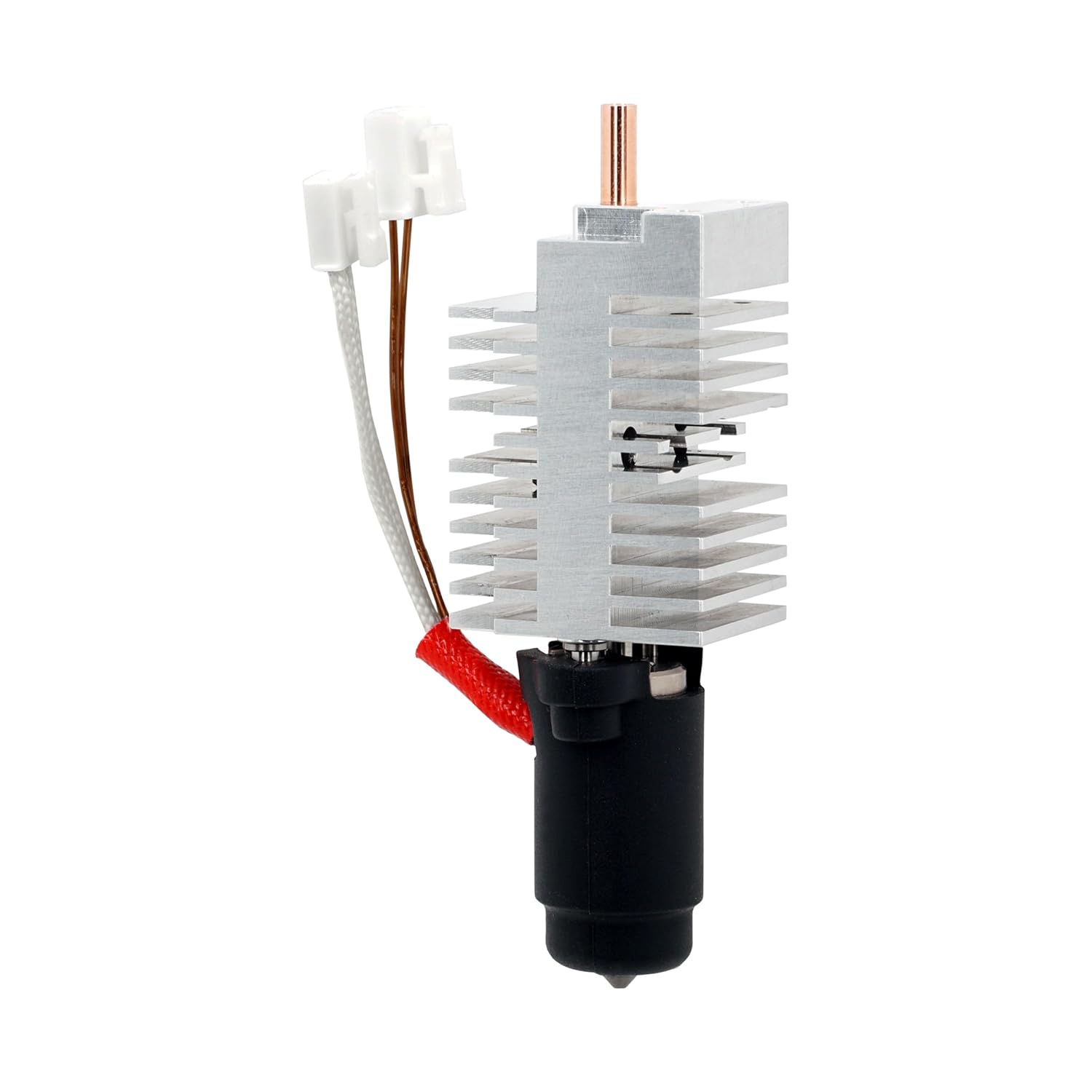
The Creality K2 Plus has established itself as a flagship machine, but for the “Engineering Enthusiast,” stock hardware is rarely the end of the road. In the latest installment of the K2 Plus Upgrade Series, I tackle a critical component swap: replacing the stock hotend with the Micro Swiss FlowTech system equipped with the CM2 High Flow Hardened Steel nozzle.

This guide covers the technical specifications, a direct weight comparison, and the step-by-step installation process to help you decide if this upgrade is right for your rig.


The primary motivation for this upgrade is flow performance and durability. While browsing upgrade paths, I secured the Micro Swiss FlowTech hotend, pairing it specifically with the CM2 High Flow nozzle.

It is important to distinguish between the nozzle options available for this ecosystem. Micro Swiss offers standard plated nozzles and generic high-flow versions, but the CM2 stands out because it utilizes hardened steel. This is a critical distinction for users printing with abrasive engineering materials like carbon fiber filled filaments.

The CM2 boasts a flow rate of 50 cubic millimeters per second, ensuring the hotend can keep up with the rapid kinematics of the K2 Plus.

📸 IMAGE PLACEHOLDER: Product shot of Micro Swiss FlowTech hotend and CM2 nozzle packaging

Micro Swiss FlowTech Hotend for Creality K2 Plus

High-performance hotend replacement designed specifically for the K2 Plus

Micro Swiss CM2 High Flow Hardened Steel Nozzle

50mm³/s flow rate, hardened steel for abrasive filaments

Before installation, I performed a side-by-side comparison of the OEM equipment versus the Micro Swiss replacement.

Stock K2 Plus Hotend

Stock K2 Plus Hotend

Micro Swiss FlowTech Hotend

Micro Swiss FlowTech Hotend

Visually, the Micro Swiss unit features significantly larger and more complex cooling fins, suggesting improved thermal management. Interestingly, the heating element section appears slightly smaller on the FlowTech compared to stock.

In terms of mass—a critical factor for input shaping calibration—the difference is negligible:

ComponentWeight
Stock Hotend44 grams
Micro Swiss FlowTech45 grams

This 1-gram difference confirms that the Micro Swiss is effectively a drop-in replacement that won’t drastically alter the toolhead’s mass characteristics. This means your existing input shaping profiles will remain largely valid.


The process begins by carefully unplugging the two connectors attached to the main breakout board. These connectors can be tight, so caution is required to avoid damaging the board headers.

Once disconnected, remove the two retaining screws located near the bottom plate of the hotend assembly.

When seating the new FlowTech hotend, proper orientation is vital:

  1. The unit features an indent that must face the front of the printer
  2. Ensure the wires are routed toward the front
  3. Position the brass wire at the top

Getting this orientation correct prevents issues with thermistor readings and ensures proper cooling fan operation.

With the hotend seated, reinstall the mounting screws:

  1. Loosely thread the front screws first
  2. Then secure the top screws
  3. Final tightening once everything is aligned

This sequence ensures the unit is properly aligned before final tightening and prevents cross-threading or misalignment.


Hardware installation is only half the battle. After powering on the machine, I verified that the thermistor was reporting ambient temperature correctly before attempting to heat the nozzle.

Because the mass and flow characteristics have changed slightly, users should run the full calibration suite:

  1. PID Tune: To ensure stable temperatures
  2. Input Shaping: To account for the slightly different weight distribution
  3. Auto-Leveling: To adjust for any Z-offset changes

To validate the install, I printed a 3DBenchy using ASA filament.

Results:

  • Extrusion quality: Excellent, consistent flow throughout
  • Layer adhesion: Perfect interlayer bonding
  • ⚠️ Bed adhesion: Lifting at the chimney (common with ASA on stock surface)

While the print suffered from a bed adhesion issue—a common struggle with ASA on stock build surfaces—the extrusion quality itself was excellent. The body of the Benchy looked “phenomenal,” confirming that the FlowTech is delivering consistent extrusion.


Creality K2 Plus Printer

Core XY high-speed printer

K2 Plus Hardened Extruder Gears

Prevent wear from abrasive filaments - highly recommended companion upgrade

This project is sponsored by PCBWay. Whether you need custom PCB prototyping, CNC machining, or 3D printing services for your next build, PCBWay offers professional-grade manufacturing solutions.

Check them out here: https://www.pcbway.com/


The Micro Swiss FlowTech hotend paired with the CM2 High Flow nozzle represents a meaningful upgrade for K2 Plus owners who:

  • Print with abrasive engineering materials (carbon fiber, glass fiber, etc.)
  • Need higher flow rates for large prints
  • Want improved thermal management
  • Seek longer nozzle lifespan

The near-identical weight means minimal impact on your existing calibrations, while the hardened steel construction ensures durability for hundreds of hours of printing.

Yes, if you:

  • Regularly print with abrasive filaments
  • Push high flow rates with large nozzles
  • Want to future-proof your hotend investment

Maybe wait if you:

  • Only print PLA/PETG with standard flow rates
  • Haven’t experienced issues with the stock hotend
  • Are on a tight budget

If you found this technical guide helpful in navigating your K2 Plus upgrades, consider supporting the channel directly.

Ko-fi: https://ko-fi.com/minimal3dp

YouTube: Subscribe to Minimal 3DP on YouTube for more upgrade guides and technical deep dives.


Disclaimer: This post contains affiliate links. Minimal 3DP may earn a small commission at no extra cost to you, which helps fund future technical deep dives.

Stop Guessing: Introducing the FDM Filament Recommendation Engine

One of the biggest problems I have in my 3D printing journey is simply trying to remember which filament is best for which scenario. If I need a UV-resistant filament for an outdoor part, or if I need to know if a specific engineering-grade material is actually printable on my current setup, digging through PDF Technical Data Sheets (TDS) takes forever.

To solve this, I’ve developed a new app: the FDM Filament Recommendation Engine.

You can watch my full video introduction here:

The Solution: A Data-Driven Filament Finder

Section titled “The Solution: A Data-Driven Filament Finder”

Link to Tool: filament.minimal3dp.com

The goal of this application is to let you sort, query, and filter through over 40 different materials to find the one that fits your specific project needs.

I developed this by analyzing various manufacturer TDS records, but I know those aren’t always perfectly accurate. To validate the data, I also cross-referenced peer-reviewed journal articles. I utilized AI to help extract and organize this massive amount of data into a usable format.

For those of you who saw the early version of this tool, I’ve made several updates based on my own testing and user feedback:

I originally had three different choices for “strength,” but they were all telling me the same thing. I have simplified this to just General Strength and Compressive Strength to make the data easier to read.

You can filter by “Printability.” If you back the slider off to an 8, you’ll see familiar materials like PLA and PETG. If you look at engineering materials like PC or ASA, you’ll see that score drop significantly—reflecting the real-world difficulty of printing those materials.

This is probably the most useful feature. You can select multiple filaments (for example, UV-resistant materials like ASA, PC, and others) and hit “Compare.” This gives you a side-by-side look at their cost score, heat compatibility, and stiffness.

I’ve added information on whether a material can be annealed—the process of heating the print after printing to make the material stronger and more dimensionally stable.

I have added a feedback form to the site. If you have a better source of data than the TDS sheets or journal articles I have used, please feel free to submit it. My goal is to make this a complete repository of knowledge for us to use.

This project is sponsored by PCBWay. I want to thank them for their continued support of the Minimal 3DP channel.

If you are working on a project that requires custom PCBs, I highly recommend checking out their design services. They have powerful tools on their website to get an instant quote, and their help with PCB design layout starts at just $88.70 US.

Looking for more 3D printing tools and guides?


If you found this tool helpful, you can support my work here: